


Last updated: · By Ryan Walsh
Creating a custom login page in WordPress is a great way to enhance your site’s branding and security. Start by selecting the right plugins, like Custom Login Page Customizer or Theme My Login, to streamline your design. Customize your page with your logo, engaging background colors, and tailored messages. Don’t forget to optimize for mobile devices and guarantee user-friendly navigation. By following these steps, you’ll craft a login experience that stands out and earns user trust. Keep going to discover more tips!
Why Customize Your WordPress Login Page?
When you think about it, customizing your WordPress login page can greatly enhance your site’s security and branding. By tailoring this page, you not only reinforce branding consistency but also create a unique identity for your website. This can make a lasting impression on your users and help them recognize your brand instantly.
Moreover, a custom login page can deter unauthorized access, as it often includes security features like custom URLs and unique graphics. Additionally, implementing strong passwords significantly reduces the risk of unauthorized access, making your login page even more secure.
These login page benefits extend beyond aesthetics; they contribute to a more professional appearance. Ultimately, a personalized login page not only boosts user trust but also reinforces your brand’s values, making it an essential step in your WordPress journey.
Choosing the Right Plugins for Customization

Choosing the right plugins for customizing your WordPress login page can make a significant difference in functionality and aesthetics.
Start by researching plugins that enhance the login experience, like those offering custom branding or added security features. Verify plugin compatibility with your theme and other installed plugins to avoid conflicts that could disrupt your site’s performance.
Research plugins that improve the login experience, focusing on custom branding and security features while ensuring compatibility with your theme.
Look for user reviews and ratings to gauge how well they improve user experience. Some popular options include Custom Login Page Customizer and Theme My Login, both of which allow for easy modifications.
Ultimately, selecting the right plugins not only beautifies your login page but also contributes to a smoother, more engaging experience for your users. Additionally, consider how automated backups can protect your login customizations from unexpected data loss.
Make your choice wisely!
How to Access Your WordPress Login Page
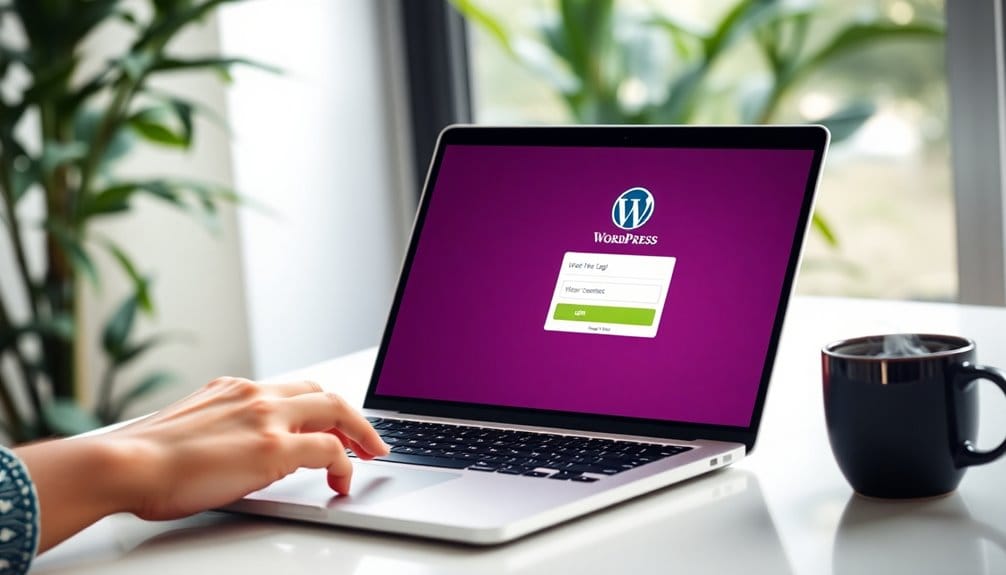
After enhancing your login page with the right plugins, it’s important to know how to access it. Typically, you can reach your login page by directing yourself to `yourwebsite.com/wp-admin` or `yourwebsite.com/wp-login.php`. If you’ve customized the login URL using a plugin, confirm to use that specific URL.
Accessing your login page not only improves user experience but also helps maintain your login page security. Verify you’ve implemented strong passwords and security measures, especially if you’ve customized the page. Additionally, consider using a WordPress installation to ensure your site operates smoothly and securely.
Step-by-Step Guide to Editing the Login Page
Now that you know how to access your WordPress login page, it’s time to customize it.
You can start by choosing a custom theme that fits your brand and adding unique login fields to enhance user experience. Consider using a theme like Astra for its exceptional speed and code-free customization.
Let’s walk through the steps to make your login page truly yours.
Choose a Custom Theme
To create a truly unique login experience in WordPress, selecting the right custom theme is essential. Look for custom theme examples that resonate with your brand’s identity. Popular choices include Astra, Divi, and OceanWP, which offer flexibility and customization options.
When choosing a theme, keep these theme compatibility tips in mind: make certain it’s responsive, loads quickly, and works well with your existing plugins.
Test the theme in various browsers to guarantee a consistent experience for all users.
Don’t forget to check user reviews and support options before making a decision. A well-matched theme not only enhances your login page but also sets the tone for your entire site, making it memorable for your users.
Add Custom Login Fields
Once you’ve chosen a custom theme that aligns with your brand, enhancing your login page with custom fields adds a personal touch.
To start, you’ll want to use a plugin like “Custom Login Page Customizer” or “Theme My Login.” These tools let you easily add custom field types such as text boxes, checkboxes, or dropdown menus to gather specific information from your users.
For user role customization, you can create fields that are displayed only to certain roles, guaranteeing relevant data collection.
After installing your chosen plugin, navigate to the settings and configure the fields according to your needs.
Finally, test the new login page to verify everything functions smoothly. A personalized login experience can help improve user engagement and satisfaction.
Customizing Login Page Branding With Your Logo
Customizing your WordPress login page with your logo can make a significant impact on your site’s branding. By adding your logo, you enhance branding consistency, ensuring that users recognize your site immediately.
This simple change not only reinforces your brand identity but also improves the overall user experience. When users see a familiar logo, it fosters trust and makes them feel more comfortable accessing your site.
You can easily achieve this by using a plugin or custom code to replace the default WordPress logo with your own. Just make sure your logo is clear and appropriately sized to maintain a professional look.
Implementing these changes can also contribute to improved site speed and performance, making the user experience even better.
With these adjustments, you’ll create a seamless entry point that aligns with your brand’s image.
Changing the Background Color and Image
Now that you’ve added your logo, it’s time to enhance your login page’s visual appeal. Choosing the right background color and image can greatly impact user experience. Additionally, responsive design is essential to ensure your login page looks good on all devices. Let’s explore how to make these changes effectively.
Choosing Background Colors Wisely
Choosing the right background color and image for your custom login page can make a significant impact on user experience. Here are some key factors to evaluate:
- Color Psychology: Different colors evoke different emotions. Choose hues that reflect your brand and create a welcoming atmosphere.
- Brand Consistency: Confirm your colors align with your overall brand identity. This helps reinforce recognition and trust.
- Accessibility Considerations: Always prioritize readability. Use contrasting colors to make text legible for all users, including those with visual impairments.
- User Experience: A well-chosen background can enhance navigation. Aim for a clean, uncluttered look that guides users smoothly through the login process.
Adding Custom Background Images
A visually appealing login page can greatly enhance user engagement, and adding custom background images is a great way to achieve this.
You can explore various background image sources, including copyright-free images, to find something that resonates with your brand. Always consider image size optimization to guarantee quick loading times.
Creative background ideas like seasonal themes can keep your page fresh. When using gradients effectively, make certain they’re accessible to all users.
Implement responsive background designs so your login page looks great on any device. Don’t forget accessibility considerations—confirm text contrasts well with the background.
Adding Custom CSS for Design Tweaks
To enhance the visual appeal of your custom login page in WordPress, adding custom CSS is essential. This not only elevates branding consistency but also improves user experience.
Enhancing your WordPress login page with custom CSS boosts branding consistency and enriches user experience.
Here are some key elements to take into account:
- Custom Styles: Tailor colors and fonts to match your brand identity.
- Responsive Design: Verify the login page looks great on all devices, maintaining a mobile-friendly interface.
- Accessibility Features: Use proper contrast ratios and alt text for images to cater to all users.
- CSS Frameworks: Leverage frameworks for quick adjustments and cohesive design inspiration.
Additionally, remember that website security is crucial, as it protects user data and enhances trust in your brand.
How to Modify the Login Form Fields?
To create a more personalized login experience, you can modify the form fields in WordPress.
This includes adding custom fields to gather specific information or removing default fields that aren’t necessary. Implementing a strong password policy can also enhance the security of your customized login process.
Let’s explore how to make these adjustments effectively.
Add Custom Fields
While customizing your WordPress login page, you might want to add custom fields to enhance user experience or gather specific information. Here’s how you can approach it:
- Choose Custom Field Types: Decide if you need text fields, checkboxes, or dropdowns based on the information you want to collect.
- Utilize Plugins: Use plugins like Advanced Custom Fields or User Registration to easily add these fields without coding.
- Set User Role Permissions: Confirm that the custom fields are accessible only to the appropriate user roles, enhancing security and relevance.
- Validate Input: Implement validation to ensure that the data entered meets your requirements, improving data quality and user experience.
Remove Default Fields
Customizing your WordPress login page often involves removing default fields that mightn’t serve your needs.
To enhance user experience, you can easily eliminate unnecessary fields like the username or password. You’ll typically use a plugin or add custom code to your theme’s functions.php file.
If you opt for code, the `login_enqueue_scripts` hook allows you to hide or disable these fields by targeting their IDs. Simply use JavaScript or CSS to set them as hidden.
Make sure to test the changes to confirm everything works smoothly.
Implementing Custom Login Messages
Here’s how to effectively implement them:
- Personalize Your Message: Tailor greetings based on user roles, making them feel valued.
- Provide Guidance: Offer tips or reminders for forgotten passwords or registration.
- Align with Branding: Use language and visuals that reflect your site’s identity, reinforcing your brand.
- Encourage Action: Motivate users to explore your site further with a call-to-action after login.
Additionally, incorporating local searches into your strategy can enhance engagement by making your site more relevant to your audience.
Enhancing Security on Your Custom Login Page
To guarantee your custom login page is secure, it’s essential to implement various protective measures that safeguard user data.
Start by enabling two-factor authentication; it adds an extra layer of security, making it harder for unauthorized users to access accounts.
Next, incorporate captcha integration to prevent automated bots from attempting to log in. This simple step can greatly reduce spam and brute force attacks.
Additionally, set up brute force protection to limit login attempts. This way, if someone tries multiple incorrect logins, they’ll be temporarily blocked.
Finally, consider a login lockdown feature, which restricts access after a certain number of failed attempts.
Regularly reviewing and updating security measures will help you stay ahead of potential threats.
Together, these strategies will enhance your login page’s security and protect your users effectively.
Testing Your Custom Login Page for Usability
After implementing security measures on your custom login page, it’s time to focus on usability. A great user experience guarantees visitors engage effectively.
Here are some key aspects to test:
- Design Simplicity: Keep your layout clean and intuitive to enhance visual hierarchy.
- Accessibility Features: Make certain your login page is usable for everyone, including those with disabilities.
- Mobile Responsiveness: Verify that the design adapts smoothly on various devices for better user engagement.
- Load Speed: Check that your login page loads quickly; slow speeds can lead to high bounce rates.
Utilize testing tools to gather user feedback and analyze usability metrics, confirming your custom login page meets all essential standards.
Troubleshooting Common Login Page Issues
Even with a custom login page, you might run into some hiccups.
You could face issues like needing to clear your browser cache, resetting a forgotten password, or dealing with plugin conflicts.
Let’s tackle these common problems to keep your login experience smooth.
Clear Browser Cache Issues
When you encounter issues with your custom login page, clearing your browser cache can often resolve the problem. Cached files may prevent your browser from loading the latest version of your page, causing compatibility issues.
Here’s how to effectively clear your cache:
- Open your browser settings: Look for options related to privacy or history.
- Select ‘Clear browsing data’: Choose the timeframe—select ‘All time’ for a thorough cache clearing.
- Check ‘Cached images and files’: Make sure this option is selected; it’s vital for resolving loading issues.
- Restart your browser: This helps apply the changes and refreshes your session.
Resetting Forgotten Passwords
Forgetting your password can be frustrating, especially when you need to access your WordPress site quickly.
Fortunately, you have several password recovery methods at your disposal. Start by clicking the “Lost your password?” link on the login page. Enter your email address, and you’ll receive instructions to reset your password.
Confirm your user notification settings are configured correctly so you get these emails promptly. If you don’t receive the email, check your spam folder or verify your hosting provider isn’t blocking notifications.
Additionally, consider using a strong password manager to avoid this situation in the future. By following these steps, you can regain access to your site without too much hassle.
Plugin Conflicts Troubleshooting
After regaining access to your site, you might encounter other issues, such as being unable to log in due to plugin conflicts.
Here are some common troubleshooting steps to resolve these problems:
- Check for outdated plugins: Confirm all plugins are updated for peak plugin compatibility.
- Review error messages: Pay attention to any error messages that may indicate script conflicts or user permissions issues.
- Disable security and caching plugins: These can sometimes block access or cause database issues; deactivate them temporarily.
- Test theme conflicts: Switch to a default theme to see if the login issue persists.
Tips for Mobile Optimization of Your Login Page
Mobile optimization is essential for your login page, especially since over 50% of web traffic now comes from mobile devices.
Start with a mobile-first approach to guarantee your design adapts seamlessly across various screen sizes. Implement responsive design to maintain visual integrity and functionality.
Don’t forget touch optimization; buttons should be easy to tap without zooming. Include accessibility features to accommodate all users, guaranteeing compliance with guidelines.
Use font scaling to enhance readability and avoid crowding elements. Test your login page with testing tools to identify issues and improve user experience.
Monitor performance metrics to guarantee fast loading times and smooth interaction, making it easy for users to log in from their mobile devices.
How to Revert to the Default Login Page?
If you’ve customized your login page but want to revert it to the default WordPress login, the process is straightforward. Just follow these reset procedures:
- Deactivate Customization Plugins: Go to your plugins section and deactivate any login customization plugins you’ve installed.
- Clear Caches: If you’re using a caching plugin, clear the cache to confirm the default settings take effect.
- Restore Backup: If you used backup strategies, restore your site from the backup before the customization.
- Check User Permissions: Verify your user permissions are set correctly, allowing access to the default login page.
Best Practices for Maintaining Your Custom Login Page
To guarantee your custom login page remains secure and functional, regularly updating both your WordPress core and any associated plugins is essential.
Implement custom security measures, such as two-factor authentication, to protect user data.
Focus on user experience enhancement by guaranteeing your page loads quickly and intuitively.
Don’t overlook accessibility considerations; use alt tags and guarantee compatibility with screen readers.
Maintain branding consistency by using your site’s colors and logo, making it familiar and trustworthy for users.
For performance optimization, regularly check loading times and adjust images or scripts as needed.
Finally, establish backup strategies to safeguard your customizations, guaranteeing you can quickly restore your login page if issues arise.
Periodic updates are key for long-term success.
Conclusion
To sum up, customizing your WordPress login page can transform it from a boring gateway into an eye-catching entrance that wows your users. You’ve got the tools and steps to make it happen, so don’t hesitate! By following best practices and ensuring mobile optimization, you’ll create a seamless experience that feels as smooth as butter. Remember, your login page is often your users’ first impression—make it unforgettable!