

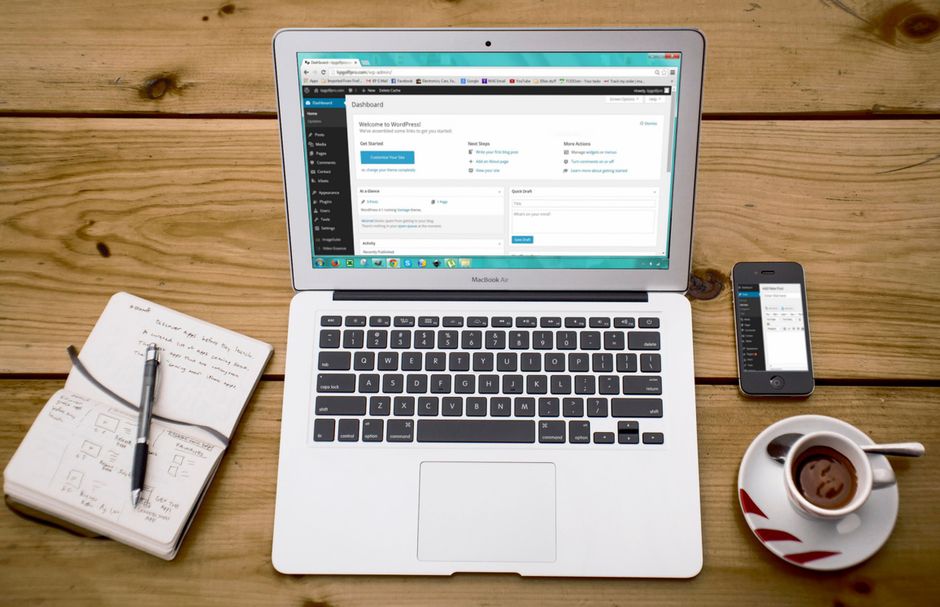
WordPress is a free, open-source content management system (CMS), which is software that lets you create and manage a website without writing code. To build your first site, you install WordPress on a web host, choose a theme, add plugins if you need extra features, and publish your first pages. This WordPress tutorial for beginners 2026 covers each step in order, from preparing your accounts to launching a site you can be proud of.
Key Takeaways
- The official WordPress beginner guide starts with reading introductory resources before you install, so it pays to learn the basics first.
- The official install guide says that under most circumstances installing WordPress takes less than five minutes, and many web hosts offer tools that install it for you automatically.
- The official release archive lists 7.1.4, released October 28, 2026, as the newest release in the 7.1 series, and only the most recent release in a series is safe to use.
- During installation, WordPress creates a wp-config.php file in the root folder that stores the database connection details your site needs.
What Do You Need Before You Start?
You need a domain name, a web host, and a plan for logging in and managing your content before you install WordPress. A domain name is the address people type to find your site, such as example.com. A web host is a company that stores your site’s files and makes them available on the internet.
Start by reading the official WordPress getting started guide, which lays out a numbered plan that begins with introductory reading before installation. Doing that first makes the steps below easier to follow.
Hosting plans vary in price, storage, and support. If you are unsure which to choose, read our guide to comparing hosting options for WordPress websites before you buy.
- A domain name, purchased through your host or a registrar
- A hosting plan that supports the PHP version and MySQL or MariaDB database WordPress requires
- An email address you can access, for your admin account and password resets
- Your site title and a short tagline, which you can change later
How Do You Install WordPress?
Most beginners install WordPress with a one-click installer in their hosting dashboard. The official WordPress install guide notes that under most circumstances installation is simple and takes less than five minutes, and that many web hosts offer tools to install it automatically.
The table below compares the three common routes so you can choose the one that fits your situation.
| Method | Best for | What you do |
|---|---|---|
| One-click host installer | Most beginners | Open the installer in your host dashboard, then set your site title and admin login |
| Manual installation | Users who want full control over files and the database | Download WordPress, create a database, upload the files, and run the setup script |
| Local installation | Practicing before you go live | Run WordPress on your own computer using a local server environment |
If you choose a manual or local install, follow our guide to installing WordPress on cPanel or localhost for detailed screens and settings.
What Does the Installer Create?
During installation, WordPress creates a wp-config.php file in your site’s root folder. The WordPress Installation lesson on learn.wordpress.org explains that this file stores the database connection details your site uses to reach its database.
As a beginner, you rarely need to edit this file. Keep it private, though, because it contains your database credentials, and back up your site before you change anything in it.
What Should You Set Up After Your First Login?
Set your site identity and permalinks before you publish anything, because changing permalinks later can break existing links. Work through these steps in order.
- Log in by visiting your domain followed by /wp-admin.
- Go to Settings, then General, and enter your site title, tagline, and time zone.
- Go to Settings, then Permalinks, and choose the Post name option so page addresses are short and readable.
- Delete the sample page and the Hello world post, or keep them until you finish learning the editor.
- Set a strong, unique admin password and remove any user accounts you do not need.
How Do You Choose and Set Up a Theme?
A theme is a package of templates and styles that controls your site’s design and layout. You can switch themes later without losing your posts and pages, so the first choice does not lock you in.
If you want background before you choose, read a simple explanation of what a WordPress theme is. It covers how themes differ from plugins and why the two work together.
How Do You Activate a Theme?
You activate a theme from your dashboard in a few clicks. Follow these steps to install and preview one.
- In the dashboard, go to Appearance, then Themes.
- Click Add New Theme and search for a theme that is well reviewed and recently updated.
- Hover over the theme, click Preview to see how it looks, then click Activate.
- Open the Customizer to adjust colors, fonts, the header, and the footer.
Choose a theme that is actively maintained and avoid themes that ask you to install many unrelated plugins. Heavy themes can slow pages down, so test your layout on a phone as well as a desktop.
How Do You Add Plugins Without Breaking Your Site?
Install only the plugins you need, download them from the official WordPress plugin directory, and keep each one updated. A plugin is a package of code that adds a feature to WordPress, such as a contact form, an online store, or a backup tool.
Every plugin adds code your site has to run, so a long plugin list can slow pages and widen your security exposure. Start with a small set. A backup plugin and an SEO plugin are common first choices. To see how these add-ons plug into your site, read how WordPress plugins extend your site.
- Check that the plugin is actively maintained and works with your WordPress version
- Read recent reviews and the support forum before you install
- Deactivate and delete plugins you no longer use
- Back up your site before you run major updates
How Do You Create Your First Page?
You create a page by going to Pages, then Add New, and using the block editor to add a title and content. The block editor builds content from blocks, which are individual pieces such as a paragraph, heading, image, or button.

Click the plus icon to insert a block, then use the toolbar above it to format text or change alignment. For a first page, aim for a clear title, a short introduction, and one call to action, such as a link to your contact form.
For more advanced editing tips, see how to use the WordPress block editor effectively.
What Is the Difference Between a Page and a Post?
Pages hold content that stays the same over time, such as an About page or a Contact page. Posts are dated entries that appear in your blog feed and are usually organized by category and tags.
Choose a page for information visitors need at any time and a post for news, updates, or articles you publish on a schedule.
What Should You Check Before You Launch?
Before launch, confirm that your site runs the latest release, has a recent backup, and displays correctly on phones. The official WordPress release archive lists 7.1.4, released October 28, 2026, as the newest release in the 7.1 series, and states that only the most recent release in that series is safe to use and actively maintained.
Use this checklist before you make the site public.
- WordPress core, themes, and plugins are up to date, which you can check under Dashboard, then Updates
- A recent backup exists, and you know where it is stored
- Pages display correctly on both phone and desktop screens
- Your admin account uses a strong, unique password
- Search engines are not blocked, which you can confirm under Settings, then Reading
Frequently Asked Questions
How long does it take to build a WordPress site?
The installation step itself is quick, and the official install guide says that under most circumstances it takes less than five minutes. Setting up your theme, adding plugins, and writing your first pages takes longer, and the total depends on how much content you prepare. Writing your pages in advance will shorten the process.
Is WordPress free to use?
The WordPress software itself is free and open source. You pay for a domain name, a hosting plan, and any premium themes or plugins you choose to buy.
Do I need to know how to code?
No. The block editor and most themes handle layout and content without code. Basic knowledge of HTML and CSS helps when you want to customize a design in detail.
Should I edit the wp-config.php file?
Edit wp-config.php only when you have a specific reason, such as changing database details or adding an advanced setting. Always back up the file or your full site first. A small mistake in this file can make your site inaccessible.
Which WordPress version should I install?
Install the latest release in the current series. The official release archive lists 7.1.4, released October 28, 2026, as the newest release in the 7.1 series, and it notes that only the most recent release in a series is safe to use.
Wrapping Up This WordPress Tutorial for Beginners 2026
You now have the full path for building a WordPress site: prepare a domain and host, install WordPress, set your basic settings, choose a theme, add only the plugins you need, and publish your first page. Each step builds on the one before it, so work through them in order.
Once your site is live, keep it updated and backed up, and review your plugin list every few months. Returning to this WordPress tutorial for beginners 2026 whenever you need a refresher will help you keep the site running smoothly.