
Last updated: · By Ryan Walsh
To hide the WordPress admin bar for specific users, you can add custom code in your theme’s `functions.php` file. Use `current_user_can()` to check user roles, ensuring only admins see the bar. Alternatively, plugins like “Adminimize” and “Hide Admin Bar” offer user-friendly options to manage visibility. Make sure to test changes by logging in with different accounts to confirm the admin bar is hidden as intended. Discover other effective methods to streamline user experiences seamlessly.
Why You Might Want to Hide the Admin Bar
When you’re managing a WordPress site, you might find the admin bar distracting or unnecessary. While the admin bar offers benefits like quick access to essential tools, it can also create user distraction, especially for those unfamiliar with WordPress.
If you’re running a site where user experience is a priority, hiding the admin bar for certain users can streamline their interaction. This helps maintain focus on content rather than navigation options.
Hiding the admin bar for specific users enhances focus on content, creating a smoother, more streamlined experience.
Additionally, if you’re working with clients or contributors who don’t need admin features, removing the bar simplifies their interface, enhancing usability.
Ultimately, deciding to hide the admin bar can create a cleaner, more efficient environment tailored to your users’ needs. Implementing this feature can also improve WordPress security by limiting access to sensitive areas for inexperienced users.
Identifying Users: Who Should Have the Admin Bar Hidden?
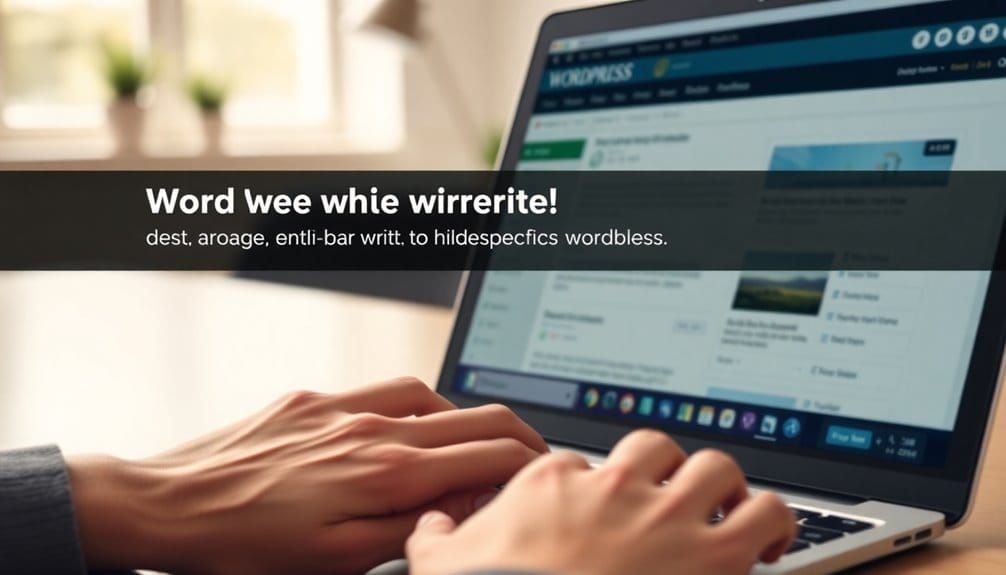
When deciding who should have the admin bar hidden, consider the roles of your users. For instance, editors and contributors might benefit from a cleaner interface, while administrators may need full access. Balancing user experience with functionality is key to optimizing your site’s usability. Additionally, understanding user roles in WordPress is essential for making informed decisions about access levels.
Roles Needing Admin Bar
Identifying which user roles should have the WordPress admin bar hidden is essential for maintaining a streamlined experience.
Generally, contributor visibility can be limited since they don’t need access to admin features. Subscribers, too, benefit from a cleaner interface, as they typically engage with content rather than site management.
While authors might require some author permissions, you might still consider hiding the admin bar to reduce distractions.
Editor roles often need full access, so keeping the admin bar visible for them is vital.
User Experience Considerations
While considering user experience, it’s vital to evaluate which users truly benefit from having the WordPress admin bar visible. For most site visitors, the admin bar can clutter their interface, detracting from user engagement.
If you’ve got contributors or subscribers, hiding the bar enhances interface simplicity, allowing them to focus solely on content without unnecessary distractions.
Conversely, admins and editors rely on the admin bar for quick access to important features, so it’s imperative to maintain it for those roles.
By strategically hiding the admin bar for specific users, you create a tailored experience that fosters engagement while streamlining site navigation.
Ultimately, assess user roles carefully to guarantee everyone gets the best experience possible.
Methods to Hide the Admin Bar: A Step-by-Step Guide
If you want a cleaner look for your WordPress site, hiding the admin bar can make a big difference.
You can achieve this by using custom code that targets specific user permissions. Start by accessing your theme’s `functions.php` file.
Add the following code snippet:
“`php
add_action(‘after_setup_theme’, function() {
if (!current_user_can(‘administrator’)) {
show_admin_bar(false);
}
});
“`
This code checks if the user isn’t an administrator and hides the admin bar accordingly.
Remember to back up your site before making changes. Having a reliable backup solution ensures you can restore your site if anything goes wrong.
You can tweak the `current_user_can()` function to match different user roles, ensuring only the intended users see the admin bar.
This method helps create a more streamlined experience.
Using Plugins to Control Admin Bar Visibility
If you want to manage the WordPress admin bar visibility more effectively, using plugins can be a great solution.
Popular admin bar plugins offer various features that let you customize what users see, while also allowing you to create custom user roles.
This way, you can tailor the experience for different users without hassle. Additionally, leveraging custom user roles can enhance your site’s functionality and user management.
Popular Admin Bar Plugins
When you want to customize your WordPress experience, using plugins to control the visibility of the admin bar can be a game changer. Several popular plugins make admin bar customization simple.
For example, “Adminimize” allows you to hide specific menu items based on user permissions, tailoring the experience for different roles.
“Hide Admin Bar” focuses solely on hiding the admin bar for selected users, giving you straightforward control.
Another great option is “User Role Editor,” which offers extensive capabilities for managing user permissions and hiding the admin bar as needed.
Custom User Roles Management
Customizing user roles in WordPress offers a powerful way to manage admin bar visibility. With the right plugins, you can create custom capabilities that fit your site’s needs.
For instance, using a user role editor, you can define specific user permissions that determine who sees the admin bar. This means you can hide it from certain roles, like subscribers or custom roles, ensuring they only have access to what they need.
By adjusting these settings, you maintain a clean interface for different users, enhancing their experience. Plus, it keeps your dashboard organized and tailored to your audience.
Testing Your Changes: Ensuring the Admin Bar Is Hidden
After making changes to hide the WordPress admin bar, it’s important to test your site to verify everything works as intended.
Start by logging in with different user accounts to check admin bar visibility. Make sure that users with roles meant to see the admin bar can access it, while those without the appropriate permissions can’t.
Test the admin bar visibility by logging in with various user accounts to ensure proper access based on roles.
This step verifies your user role customization is functioning correctly.
If you notice any discrepancies, revisit your settings or code adjustments.
It’s vital to confirm that all user roles behave as expected, as this guarantees a seamless experience for everyone. Additionally, quality backlinks improve rankings; ensuring that your site maintains good SEO practices will enhance overall performance.
Troubleshooting Common Issues When Hiding the Admin Bar
Even with thorough testing, issues can arise when hiding the WordPress admin bar. One common problem is related to admin bar visibility. If users still see the admin bar, double-check your code or settings to verify they’re applied correctly.
You might also encounter user role conflicts, especially if you’ve got custom roles or plugins that modify permissions. To troubleshoot, review the user roles assigned to affected users and confirm they align with your hiding criteria.
Additionally, clear your cache, as outdated data can sometimes lead to unexpected results. If issues persist, disabling conflicting plugins temporarily can help identify the culprit. Address these areas, and you’ll likely resolve most admin bar visibility problems. Furthermore, ensuring that security measures are in place can help prevent unauthorized access to admin features.
Conclusion
To summarize, hiding the WordPress admin bar for specific users can streamline their experience and declutter the interface. Whether you’re aiming for a cleaner look or just want to keep distractions at bay, the methods we’ve discussed make it a breeze. With just a few clicks, you can transform your site into a user-friendly paradise, where even the most tech-challenged users will feel like web design wizards! So go ahead, take control of your admin bar!