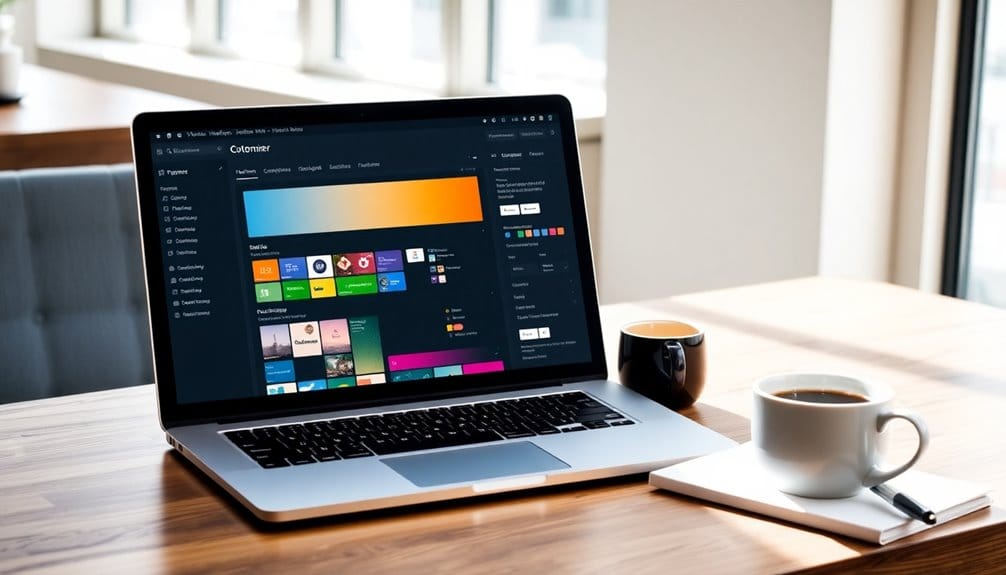
To use the WordPress Customizer like a pro, start by exploring its clean interface. Navigate the left panel to tweak themes, menus, and widgets while enjoying real-time previews on the right. Customize layouts, colors, and fonts that match your brand, and use the live preview feature for instant feedback. Don’t forget to leverage version control for backups and maintain a consistent strategy. Keep going, and you’ll discover more tips to enhance your design skills even further!
Why the WordPress Customizer Is Essential for Your Site Design
When you’re designing your site, the WordPress Customizer is a game changer. It streamlines theme selection, letting you visualize how different options affect your site’s look and feel.
By focusing on branding consistency, you create a cohesive identity that resonates with your audience. The tools available enhance user experience through responsive design, guaranteeing your site looks great on any device.
Fostering branding consistency creates a unified identity, enhancing user experience across all devices with responsive design.
With widget management, you can easily arrange elements to maximize functionality. Don’t overlook the importance of color psychology and typography choices; they play a vital role in conveying your brand’s message.
Plus, incorporating accessibility features guarantees everyone can navigate your site, making it inclusive and user-friendly. Embrace the Customizer to elevate your site design effectively. Additionally, having optimized content helps improve your site’s visibility in search engines, which is essential for attracting organic traffic.
Getting Started: Navigating the WordPress Customizer Interface
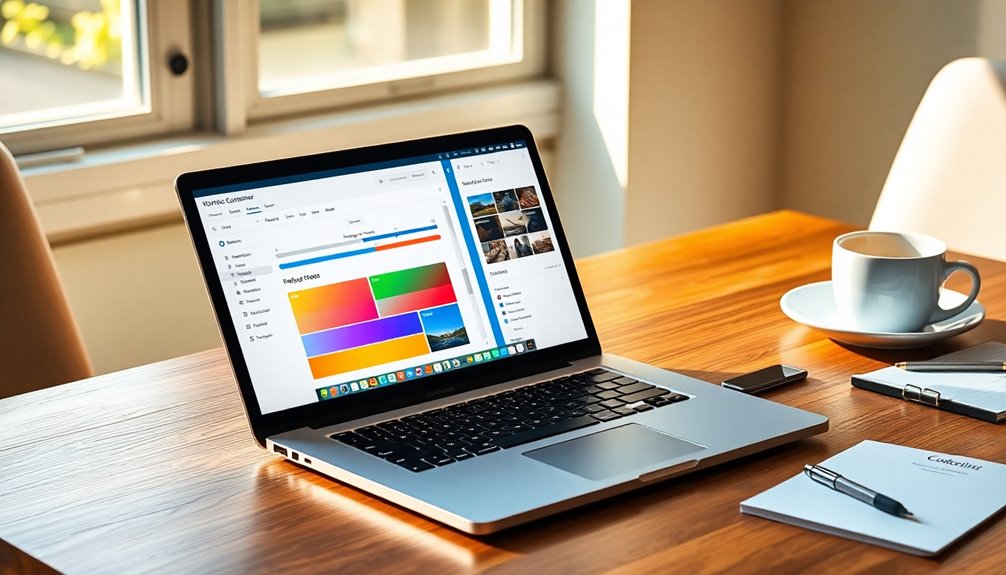
Maneuvering the WordPress Customizer interface is a straightforward process that can greatly enhance your site’s design.
When you first access the Customizer, you’ll notice a user interface that’s clean and intuitive. On the left, you’ll find various options to adjust different aspects of your site. These include themes, menus, and widgets.
Each section reveals specific customizer features that let you tweak colors, layouts, and more. As you make changes, you’ll see real-time previews on the right side, allowing you to visualize your adjustments instantly. Additionally, you can make design changes such as adjusting header images and adding social media links, which enhance the overall look of your site.
Don’t be afraid to explore each option; the more familiar you become with the user interface, the easier it’ll be to create a unique and engaging site that reflects your brand.
Customizing Your Site’s Appearance: Layouts, Colors, and Fonts
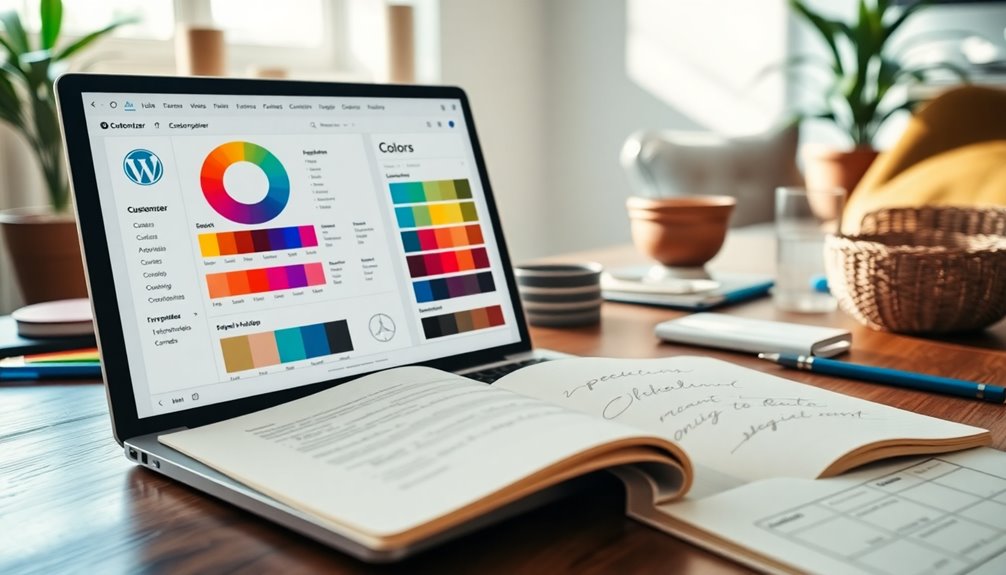
Transform your site’s appearance by diving into the Customizer’s options for layouts, colors, and fonts. Start with theme selection, where you can choose a design that fits your brand.
Next, explore header styles and footer options to enhance navigability. Adjust button designs to make them pop, ensuring they align with your color scheme. Don’t forget about background choices; a well-selected backdrop can elevate your content.
For a polished look, fine-tune widget arrangement and image settings to enhance usability.
Finally, establish a clear typography hierarchy to guide your visitors through your content. By mastering these elements, you’ll create a visually appealing site that resonates with your audience and strengthens your brand identity. Additionally, consider using customizable WordPress themes to unlock advanced features and enhance your site’s performance.
Previewing Changes: How to Use the Live Preview Feature Effectively?
How can you guarantee your site looks just right before making changes live? The WordPress Customizer’s live preview feature is your best friend.
With this tool, you can engage in live editing, allowing you to see how your adjustments impact your site in real-time. Use preview modes to experiment with different layouts, colors, and fonts without any risk.
Engage in live editing to see real-time adjustments and experiment with layouts, colors, and fonts risk-free.
Simply make your changes, and watch them unfold on your site in the preview pane. This way, you’ll catch any issues before hitting the publish button.
Don’t forget to toggle between different devices in the preview modes to confirm your site looks great on mobile and desktop.
Embrace live previewing, and make informed decisions for your website’s design! Additionally, utilizing performance optimization techniques can further enhance your site’s user experience.
Saving and Publishing Your Customizations: Best Practices for Success
After you’ve previewed your changes and are satisfied with how everything looks, it’s time to save and publish your customizations.
To guarantee your site remains consistent and manageable, follow these best practices:
- Use Version Control: Regularly back up your site to prevent losing any customizations. This way, you can easily revert to a previous version if needed. Ensuring you have multiple backup copies enhances data protection and recovery efficiency.
- Implement a Customization Strategy: Plan your changes ahead of time. Know what elements you want to modify and in what order.
- Document Your Changes: Keep a log of your modifications. This helps you track what’s been done and simplifies future updates.
Conclusion
In the world of web design, the WordPress Customizer is your painter’s palette, brimming with colors and tools to craft your masterpiece. By mastering its features, you’re not just tweaking settings; you’re shaping your online identity. Embrace the process, experiment boldly, and watch your vision come to life. As you save and publish your work, remember: every change is a brushstroke on the canvas of your site, turning it into a reflection of your unique style.