Building a minimalist WordPress site with zero plugins can simplify your experience and boost performance. It lets you focus on creating valuable content without distractions. By using built-in features and a clean theme, you can enhance navigation and clarity. You’ll also reduce security risks and maintenance efforts. Prioritize essential pages and optimize for SEO and speed. Want to know more about maintaining and analyzing your site’s performance? There’s plenty more to explore!
Why Choose a Minimalist WordPress Setup?
When you choose a minimalist WordPress setup, you simplify the process of creating and managing your website, allowing you to focus on what truly matters: your content.
Embracing minimalism benefits you by reducing distractions and enhancing your site’s performance. With fewer elements to manage, you’ll find it easier to maintain a clean design and faster loading times, both essential for user engagement.
The simplicity advantages extend to your workflow as well; you won’t get bogged down by unnecessary features, enabling you to concentrate on crafting compelling posts.
A minimalist approach fosters clarity, making it easier for your audience to navigate your site and engage with your material. Ultimately, this setup aligns with your goal of delivering a seamless user experience, especially since fast loading times are crucial for reducing bounce rates and improving conversions.
Key Benefits of Building Without Plugins
Building your WordPress site without plugins offers a range of advantages that enhance both performance and manageability.
First and foremost, you’ll enjoy streamlined performance, as fewer components mean faster load times. This improves user experience and boosts your site’s SEO rankings.
Streamlined performance leads to faster load times, enhancing user experience and boosting your site’s SEO rankings.
Additionally, you’ll minimize security risks; fewer plugins reduce potential vulnerabilities, keeping your site safer from attacks.
Managing your site becomes simpler, too. Without the clutter of multiple plugins, you can focus on your content and design, making updates and maintenance a breeze.
Plus, you’ll save on hosting resources, which can lead to cost savings.
Embracing the plugin-free advantages allows you to create a more efficient, effective, and enjoyable web presence. Regularly updating your site’s core and themes also enhances security, further protecting your site from common vulnerabilities.
Understanding WordPress’s Built-In Features
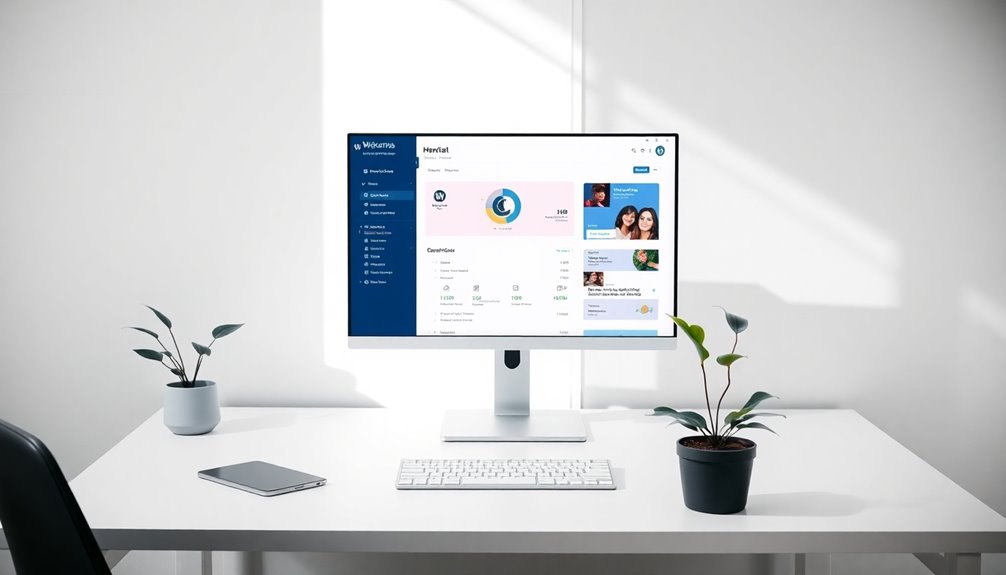
When setting up your minimalist WordPress site, it’s essential to understand the built-in features that come with it.
You’ll find default themes that give you a solid foundation, built-in widgets to enhance functionality, and various customization options to tailor your site’s look and feel. Additionally, leveraging drag-and-drop functionality can simplify the design process and enable you to create a professional-looking site without plugins.
Let’s explore how these elements can simplify your setup process.
Default Themes Overview
While exploring WordPress, you’ll quickly notice its default themes serve as a solid foundation for any website.
These themes come packed with essential default theme features that simplify the setup process. Plus, you can easily personalize them through default theme customization options.
Here are some standout features you can expect:
- Responsive Design: Guarantees your site looks great on all devices.
- SEO-Friendly: Built with best practices to help your site rank better.
- Customization Options: Change colors, fonts, and layouts without code.
- Accessibility Ready: Designed to be usable for all visitors, including those with disabilities.
Built-In Widgets Exploration
Widgets are powerful tools in WordPress that enhance your site’s functionality and user experience. They allow you to add various elements like text, images, or recent posts to your sidebar or footer without touching a single line of code.
By exploring widget functionality, you can create dynamic areas that engage your visitors. Each widget comes with options that enable easy widget customization, allowing you to tailor content to fit your site’s aesthetic and goals.
For instance, you can choose how many recent blog posts to display or even add a search bar. Utilizing built-in widgets keeps your site minimalist while still offering essential features, ensuring your audience finds what they need effortlessly.
Customization Options Available
Understanding the customization options available in WordPress can greatly enhance your site’s appeal and functionality.
You can create a unique experience without any plugins by leveraging built-in features. Here are some key areas to focus on:
- Theme Customization: Choose a theme that suits your style and adjust its settings.
- Color Options: Play with colors to create a cohesive brand identity.
- Font Selection: Select fonts that reflect your personality and improve readability.
- Header Styles and Layout Choices: Experiment with different header styles and layout choices to enhance navigation.
How to Choose the Right Theme for Minimalism
How can you guarantee that your WordPress theme aligns with minimalist design principles? Start by focusing on theme aesthetics that prioritize simplicity and functionality.
Look for clean lines, ample white space, and a limited color palette. Avoid themes cluttered with unnecessary features or excessive graphics, as they distract from your content.
Prioritize clean lines, generous white space, and a focused color palette to enhance your content’s clarity.
Next, make sure the theme is responsive and mobile-friendly, as this enhances usability. Check user reviews and demo sites to see how the theme performs in real-world scenarios.
Finally, consider how easy it’s to customize the theme without plugins, keeping your site streamlined. By choosing a theme that embodies minimalist design, you’ll create a visually appealing and efficient online presence that resonates with your audience. Additionally, ensure that the theme offers sleek and clean design elements that embody simplicity and elegance.
Essential Settings to Configure in WordPress
Here are four key settings you shouldn’t overlook:
- Default permalink settings: Switch to a custom structure for cleaner, more search-friendly URLs.
- Content visibility options: Decide whether your site is public or private, and adjust visibility for search engines accordingly.
- Time zone settings: Set your time zone to guarantee accurate timestamps for your posts.
- Discussion settings: Control comment moderation and notifications to maintain a clutter-free environment. Additionally, ensure your site is optimized for local SEO strategies to enhance your visibility in search results.
Creating a Simple Site Structure With Pages
To create a simple site structure with pages, you’ll want to start by identifying the essential pages your site needs. Once you’ve got those in place, organizing your navigation menu will help visitors easily find what they’re looking for. It’s also beneficial to focus on effective navigation menus to enhance user experience and ensure your audience can access important content seamlessly. Let’s explore how to set this up effectively.
Essential Pages Overview
Creating a simple site structure with essential pages is crucial for a streamlined user experience.
By focusing on key essential page types, you can enhance content organization and help visitors find what they need quickly.
Here are four essential pages to include:
- Home Page: Your site’s welcome mat, showcasing your main offerings.
- About Page: Share your story and mission, building trust with your audience.
- Contact Page: Provide easy ways for visitors to reach out and connect.
- Blog Page: Share valuable content regularly to engage and inform your audience.
Organizing Navigation Menu
With your key pages outlined, it’s time to think about how visitors will navigate your site. A well-organized navigation menu is essential for enhancing user experience.
Start by prioritizing your most important pages, like Home, About, and Contact. Keep the menu design simple and intuitive, using clear labels that guide users effortlessly.
Avoid overcrowding your menu with too many items; instead, consider using dropdowns if necessary. Make sure the menu is easily accessible from every page, ideally at the top.
You might also want to test your design with potential users to gather feedback. By focusing on clarity and simplicity, you’ll create a navigation structure that helps visitors find what they need quickly and efficiently.
Utilizing the Block Editor for Content Creation
As you immerse yourself in content creation with WordPress, the Block Editor offers an intuitive and flexible way to build your posts and pages.
It streamlines your workflow and enhances creativity through features like block patterns and content reuse. Here’s how you can maximize your experience:
- Explore Block Patterns: Use pre-designed layouts to save time and maintain consistency.
- Utilize Reusable Blocks: Create custom blocks for frequently used content to elevate efficiency.
- Experiment with Layouts: Mix and match different blocks for unique designs tailored to your needs.
- Preview and Adjust: Regularly check your content’s appearance on various devices to guarantee a polished look.
Additionally, consider utilizing customizable WordPress themes to enhance the design and functionality of your site without relying on plugins.
Effective Use of Menus for Navigation
When setting up your minimalist WordPress site, creating a simple menu structure is key to ensuring easy navigation. You’ll want to contemplate using dropdowns to organize your content without overwhelming visitors. Strategic widget placement in your menu can further enhance user experience by guiding visitors to important sections of your site. Let’s explore how these strategies can enhance user experience.
Simple Menu Structure
Creating a simple menu structure is essential for effective navigation on your WordPress site, especially if you want visitors to find what they need quickly.
A simple menu design promotes intuitive navigation, making it easier for users to explore your content. Here are four tips to help you create an effective menu:
- Limit Menu Items: Stick to 5-7 main items for clarity.
- Use Descriptive Labels: Choose clear, concise titles that reflect the content.
- Prioritize Key Pages: Highlight the most important sections, like About, Services, and Contact.
- Organize Logically: Arrange items in a way that makes sense to your audience.
Use of Dropdowns
Dropdowns can considerably enhance your WordPress menu‘s functionality and user experience. By implementing dropdown menus, you can organize your content more effectively, allowing visitors to access subpages without cluttering your main navigation.
This dropdown functionality helps streamline navigation, making it easier for users to find what they’re looking for.
When setting up your dropdowns, keep it simple and intuitive. Limit the number of items in each menu to avoid overwhelming visitors. You want them to navigate effortlessly, so prioritize the most important links.
Test your dropdown functionality across devices to verify it works seamlessly on both desktops and mobiles. With well-structured dropdown menus, you’ll guide users through your site, making their experience smoother and more enjoyable.
Incorporating Media Without Plugins
Incorporating media into your WordPress site without plugins can enhance your content while keeping your setup lightweight and efficient.
You can easily work with various media types by following these steps:
- Embedding images: Upload images directly to your media library and use the built-in editor to insert them into your posts.
- Video integration: Use the WordPress block editor to embed videos from platforms like YouTube or Vimeo by simply pasting the video URL.
- Audio files: Upload audio files directly and utilize the audio block to create a seamless listening experience.
- Optimizing graphics: Always optimize graphics for faster loading, ensuring they’re responsive media so they adapt to various screen sizes.
Incorporating multimedia elements can significantly enhance user engagement, boosting overall website performance while still providing rich content.
With these methods, you can maintain an efficient site while still providing rich content.
Optimizing Your Site Speed With Built-In Tools
Site speed is essential for user experience and SEO, and WordPress offers several built-in tools to help you optimize performance.
Start by utilizing caching techniques to store static versions of your pages, reducing load times for returning visitors. WordPress automatically manages some caching, but you can enhance it by enabling browser caching through your .htaccess file.
Utilize caching techniques to enhance load times for returning visitors and improve your site’s performance.
Next, focus on image optimization. Use the built-in media library to upload images in the appropriate sizes and formats.
Compress images before uploading, or leverage WordPress’s image editing features to resize and crop them. Additionally, regularly scheduled automatic backups ensure that your website remains secure and minimizes potential data loss, contributing to overall performance.
Maintaining SEO Best Practices Without Plugins
While many turn to plugins for SEO enhancements, you can effectively maintain best practices using WordPress’s built-in features. Focus on these key SEO strategies:
- Content Optimization: Craft engaging content that answers user queries.
- Keyword Research: Identify and incorporate relevant keywords naturally.
- Meta Descriptions: Write concise meta descriptions to improve search visibility.
- Image Alt Text: Use descriptive alt text for images to enhance accessibility and SEO.
Additionally, pay attention to header tags, site structure, and mobile optimization to improve user experience.
Tips for Securely Managing Your Minimalist Site
To keep your minimalist site secure, you need to implement strong password practices and regularly back up your content.
Using unique, complex passwords will help protect your site from unauthorized access.
Additionally, setting up a backup schedule guarantees you won’t lose valuable data in case of an emergency.
Strong Password Practices
Creating a minimalist WordPress site doesn’t mean you can skimp on security, especially when it comes to your passwords.
To keep your site safe, follow these strong password practices:
- Use strong password generation tools to create complex passwords that include letters, numbers, and symbols.
- Avoid reusing passwords across different accounts; each one should be unique.
- Implement two-factor authentication for an extra layer of security.
- Consider password manager recommendations to securely store and manage your passwords, making it easier to maintain strong ones.
Regular Backup Procedures
Strong passwords are just one part of securing your minimalist WordPress site. Regular backup procedures are essential for protecting your content.
Start by implementing simple backup strategies, such as saving your database and files to a remote location, like cloud storage. This way, you can easily access your data if something goes wrong.
Schedule backups weekly or bi-weekly to guarantee you capture all updates. Use a method that fits your workflow, whether it’s manual or automated.
In case of data loss, having reliable backups simplifies data recovery, allowing you to restore your site quickly. Remember, the more consistent you’re with your backups, the less stress you’ll face during unexpected situations.
Secure your site by prioritizing these backup practices.
How to Update Content Easily and Efficiently?
While managing a minimalist WordPress site, keeping your content fresh should feel effortless.
Managing a minimalist WordPress site makes maintaining fresh content an effortless endeavor.
Here are some tips to update content easily and efficiently:
- Content Scheduling: Plan your posts in advance to maintain a steady flow of updates.
- Version Control: Use WordPress’s built-in revision feature to track changes, guaranteeing you can revert if needed.
- Batch Editing: Update multiple posts at once for efficiency, especially if you’re making similar changes.
- Checklists: Create a checklist for updates to verify you cover all essential elements, like SEO and formatting.
Analyzing Your Site’s Performance With Built-In Analytics
How can you truly understand the effectiveness of your minimalist WordPress site? The answer lies in analyzing performance metrics through built-in analytics. You don’t need extra plugins; WordPress offers basic tools that provide valuable insights.
By checking your site’s traffic analysis, you can see how many visitors you’re attracting and which pages are most popular.
Look at metrics like page load time and bounce rate, as they’ll help you gauge user engagement. This information is essential; it tells you what’s working and what needs improvement.
Regularly reviewing these analytics will empower you to make data-driven decisions, enhancing your site’s performance without cluttering it with unnecessary plugins. Embrace the data, and watch your minimalist site thrive!
Conclusion
In a world where less is often more, embracing a minimalist WordPress setup can be your secret weapon. By stripping away the clutter of plugins, you’re not just simplifying your site; you’re revealing its true potential. This streamlined approach not only enhances performance but also fosters creativity and focus. So, as you begin this journey, remember: simplicity is the ultimate sophistication, and your website will reflect that elegance beautifully.