
To set up WordPress cron jobs, start by selecting a reliable plugin. Define the tasks you want to automate—like scheduled backups or email notifications—and choose a schedule that balances performance and frequency. Use WP-CLI or your chosen plugin to manage these tasks. Monitor their performance regularly and verify your server settings support cron jobs. If you’re enthusiastic to discover additional tips and best practices to streamline your automated tasks, there’s more to explore.
What Are WordPress Cron Jobs and Why Use Them?
When you want to automate tasks in your WordPress site, understanding cron jobs is essential. A cron job is a scheduled task that runs automatically at specified intervals.
The cron job benefits you by streamlining routine operations, like publishing posts or backing up your database, without manual effort. This boosts your scheduling efficiency, ensuring tasks execute on time, every time.
Instead of worrying about forgetting critical updates or maintenance, you can set these jobs to handle it for you. This not only saves you time but also enhances your site’s performance. Additionally, leveraging regular updates can significantly mitigate security risks associated with outdated components.
How to Access the WordPress Cron System

To access the WordPress cron system, you can use WP-CLI commands or directly open the wp-cron.php file.
You’ll also want to check scheduled events to see what’s lined up for execution. Understanding these methods will help you manage your cron jobs effectively. Additionally, implementing security measures can safeguard your scheduled tasks from vulnerabilities.
Using WP-CLI Commands
Accessing the WordPress Cron system through WP-CLI commands streamlines the management of scheduled tasks on your site.
With a basic understanding of WP-CLI, you can efficiently execute commands that interact with your cron jobs.
Start by opening your terminal and moving to your WordPress directory. You can check existing cron jobs with the command `wp cron list`, which gives you a clear overview of scheduled tasks.
To run a specific cron job manually, use `wp cron event run
Mastering these WP-CLI basics will help you manage your site’s automated processes more effectively.
Accessing Wp-Cron.Php File
One way to access the WordPress cron system is through the `wp-cron.php` file located in the root directory of your WordPress installation.
To guarantee smooth access, follow these steps:
- Check File Permissions: Ensure `wp-cron.php` has appropriate file permissions, typically 644, to allow execution.
- Review Access Control: Verify that your server’s access control settings don’t block requests to this file.
- Use an FTP Client: Connect to your server using an FTP client to navigate to the root directory and locate `wp-cron.php`.
- Test Access: Open your browser and enter `yourdomain.com/wp-cron.php` to see if it executes without errors.
Checking Scheduled Events
How can you check the scheduled events in WordPress?
To effectively monitor your scheduled events, you can use plugins like WP Crontrol. This tool allows you to view, manage, and delete scheduled events, making cron job verification straightforward.
Once installed, navigate to the “Cron Events” section, where you’ll see a list of tasks, their next run times, and their status. You can even add new events or edit existing ones if needed.
Regular scheduled event monitoring helps guarantee your cron jobs run as expected, keeping your site functioning smoothly. By checking these events periodically, you can identify issues before they affect your site’s performance.
Setting Up Your First WordPress Cron Job
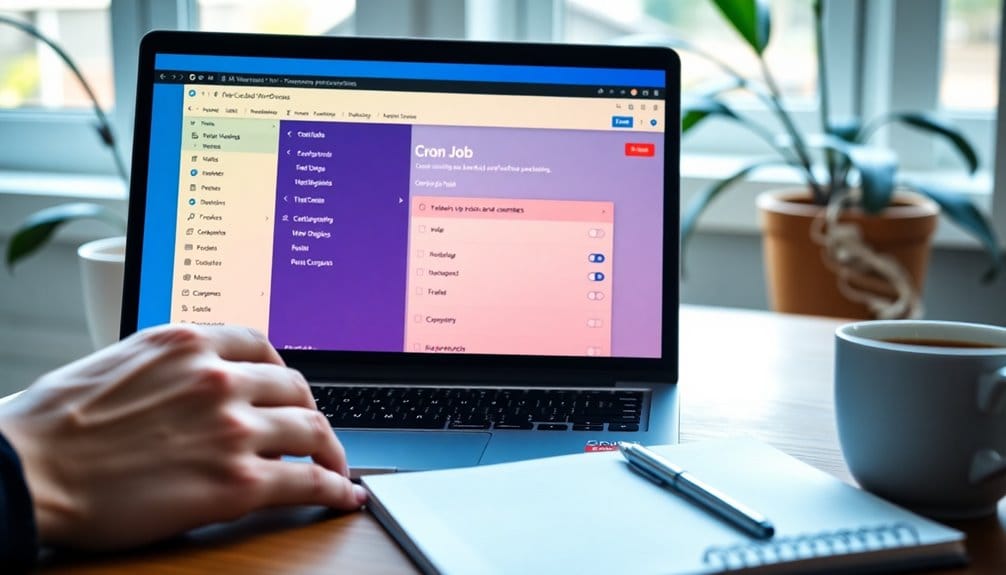
Here’s how to get started:
- Choose a Plugin: Look for a reliable cron job plugin that suits your needs.
- Define Your Tasks: Determine the recurring tasks you want to automate, like sending automated emails or clearing old data.
- Set the Schedule: Decide how often you want these tasks to run, balancing frequency with performance impact.
- Test Your Cron Job: After setup, verify everything works as expected by running a test. Regular backup schedules can help ensure your site remains operational during automated tasks.
With these steps, you’ll have your first cron job running smoothly, enhancing your site’s efficiency and reliability.
Common Use Cases for WordPress Cron Jobs
Now that you’ve set up your first WordPress cron job, let’s explore how you can make the most of it.
You can automate scheduled backups to keep your data safe, and even set up post publishing schedules to maintain a consistent flow of content. Implementing daily backups can significantly reduce the risk of data loss and enhance your site’s reliability.
These practical uses not only save you time but also enhance your site’s reliability.
Scheduled Backups Automation
When you set up scheduled backups for your WordPress site, you’re taking an essential step to protect your data.
Automating this process using cron jobs can enhance your backup reliability. Here are some effective backup strategies:
- Choose Backup Frequency: Decide how often you need backups—daily, weekly, or monthly.
- Select Backup Plugins: Use reliable plugins that support automated scheduling, like UpdraftPlus or BackupBuddy.
- Set Up Backup Notifications: Make sure you receive alerts about backup completion or failures.
- Determine Backup Storage: Decide where to store your backups—cloud services or local servers.
Post Publishing Scheduling
Automating tasks with cron jobs can streamline various aspects of your WordPress site, including post publishing. By scheduling your posts, you can maintain a consistent post frequency that keeps your audience engaged. This guarantees your content goes live at ideal times, even if you’re not around.
You can also use cron jobs for content promotion, automatically sharing new posts on social media platforms or notifying subscribers via email. This not only saves you time but also enhances your reach and visibility.
With a few simple setups, you can make sure that your posts are published and promoted efficiently, allowing you to focus on creating quality content while maintaining a steady online presence.
Managing and Editing Existing Cron Jobs
Here’s how to do it effectively:
- Access the Cron List: Use a plugin or your hosting control panel to view active cron jobs.
- Editing Cron: Adjust the schedule or the task’s parameters directly from the cron management tool.
- Deleting Cron: If a job is no longer needed, remove it to keep your system clean and efficient.
- Review Regularly: Periodically check your cron jobs to confirm they’re still relevant and functioning properly. Additionally, ensure you have a reliable backup solution in place to protect your data while managing these tasks.
Troubleshooting Common Cron Job Issues
When you set up cron jobs, you might encounter some common issues that can disrupt your site’s functionality. Error messages and misconfigured time zones are the usual culprits. Let’s explore how to identify and fix these problems effectively. Additionally, ensuring regular backups will help protect your site from potential data loss during troubleshooting.
Common Error Messages
As you set up your WordPress cron jobs, you may encounter various error messages that can disrupt their functionality. Understanding these error messages is key to resolving cron job issues.
Here are some common mistakes and troubleshooting steps to reflect upon:
- “Cron job not running”: Check if your hosting provider supports cron jobs.
- “HTTP error”: Look at your server’s configuration and permissions.
- “Timeout error”: Increase the execution time in your PHP settings.
- “Permission denied”: Verify that your script has the right permissions.
Employing effective debugging techniques and resolution strategies can help you tackle these issues swiftly.
Misconfigured Time Zones
Misconfigured time zones can lead to unexpected behavior in your WordPress cron jobs, causing them to run at odd hours or not at all.
Time zone issues often arise from incorrect settings in your WordPress dashboard or server configuration. To fix this, navigate to your WordPress settings and verify your timezone configuration matches your actual location.
If you’re using a hosting provider, check their documentation for any specific time zone settings. Additionally, consider using a plugin that helps manage cron jobs more reliably, as it can provide better visibility into scheduling.
Regularly monitoring your cron jobs can help you catch these issues early, guaranteeing your automated tasks run smoothly and on time.
Best Practices for WordPress Cron Jobs
To guarantee your WordPress cron jobs run smoothly, it’s essential to follow best practices that optimize their performance. Here are some key tips for effective cron job optimization:
- Limit Job Frequency: Schedule tasks at reasonable intervals to reduce server load and minimize performance impact.
- Use Non-Blocking Tasks: Make sure jobs don’t rely on each other, preventing delays in execution.
- Monitor Performance: Regularly check the execution times of your cron jobs to identify any bottlenecks.
- Cleanup Old Jobs: Remove outdated or unnecessary cron jobs to keep your schedule tidy and efficient.
Additionally, ensuring your site is optimized for local searches can enhance the overall effectiveness of your automated tasks.
How to Test If Your Cron Jobs Are Working?
Testing your WordPress cron jobs is essential, especially if you want to verify they’re running as expected. Start with simple testing methods, like checking the task’s output or logs.
You can use plugins designed for cron job verification, which make it easy to see if tasks executed properly.
Another effective method is to manually trigger the cron job and observe the results. If you’re comfortable with code, you can also create a custom script to log job runs, providing more insights.
Remember to monitor the timing and frequency of tasks to confirm they align with your expectations. Regular checks will help you catch any issues early, keeping your site running smoothly and efficiently. Additionally, using a reliable backup plugin enhances website security by ensuring that your data is safeguarded during automation tasks.
Scheduling Tasks With Custom Intervals
While WordPress provides default intervals for scheduling tasks, you might find that your needs require something more tailored.
Custom intervals can enhance your task automation, guaranteeing your scheduled jobs run exactly when you want them to. Here’s how you can set them up:
Custom intervals improve task automation, ensuring your scheduled jobs execute precisely when needed.
- Define Your Interval: Decide how often you want the task to run (e.g., every 10 minutes).
- Add Custom Code: Use a function in your theme’s `functions.php` file to register the new interval.
- Schedule Your Task: Link your custom interval to the specific cron job you want to automate.
- Test Your Setup: Verify everything works as intended by monitoring the execution of your tasks.
Additionally, implementing effective SEO strategies can further enhance the performance of your automated tasks.
With these steps, you’ll optimize your WordPress cron jobs effortlessly!
Integrating Plugins for Enhanced Cron Job Functionality
Integrating plugins can greatly enhance your WordPress cron job functionality, allowing you to automate tasks more efficiently. When selecting plugins, verify they offer strong plugin compatibility with your current setup.
Popular cron plugin recommendations like WP Crontrol or Advanced Cron Manager provide advanced scheduling options, making it easy to customize task intervals. These tools also help with performance optimization, guaranteeing your site runs smoothly while executing cron jobs. Additionally, using plugins that offer scheduled backups ensures your data remains safe and recoverable.
By leveraging these plugins, you can streamline your automated tasks, reduce manual effort, and improve overall site performance. Don’t forget to regularly check for updates to maintain compatibility and functionality.
With the right plugins, managing your cron jobs becomes a breeze, freeing you up to focus on other important aspects of your site.
Monitoring Cron Job Performance and Logs
Once you’ve set up your plugins for enhanced cron job functionality, it’s important to keep an eye on their performance and logs. Regular monitoring helps you optimize performance and catch issues early.
Here are some key strategies:
- Track Cron Job Metrics: Analyze execution frequency and resource usage to identify bottlenecks.
- Implement Logging Strategies: Set up logs for each job to capture detailed execution data.
- Error Monitoring: Use tools that notify you of failures, allowing for quick debugging methods.
- Notification Setup: Configure alerts for job completions or errors to stay informed.
Conclusion
Now that you know how to set up and manage WordPress cron jobs, you’re just a few clicks away from automating your website tasks. Imagine the time you’ll save! But what if something goes wrong? Will your scheduled tasks run smoothly? Keep an eye on performance and logs to guarantee everything’s ticking along perfectly. With your newfound skills, you’re on the brink of efficiency—don’t let this opportunity slip away! What will your first automated task be?