

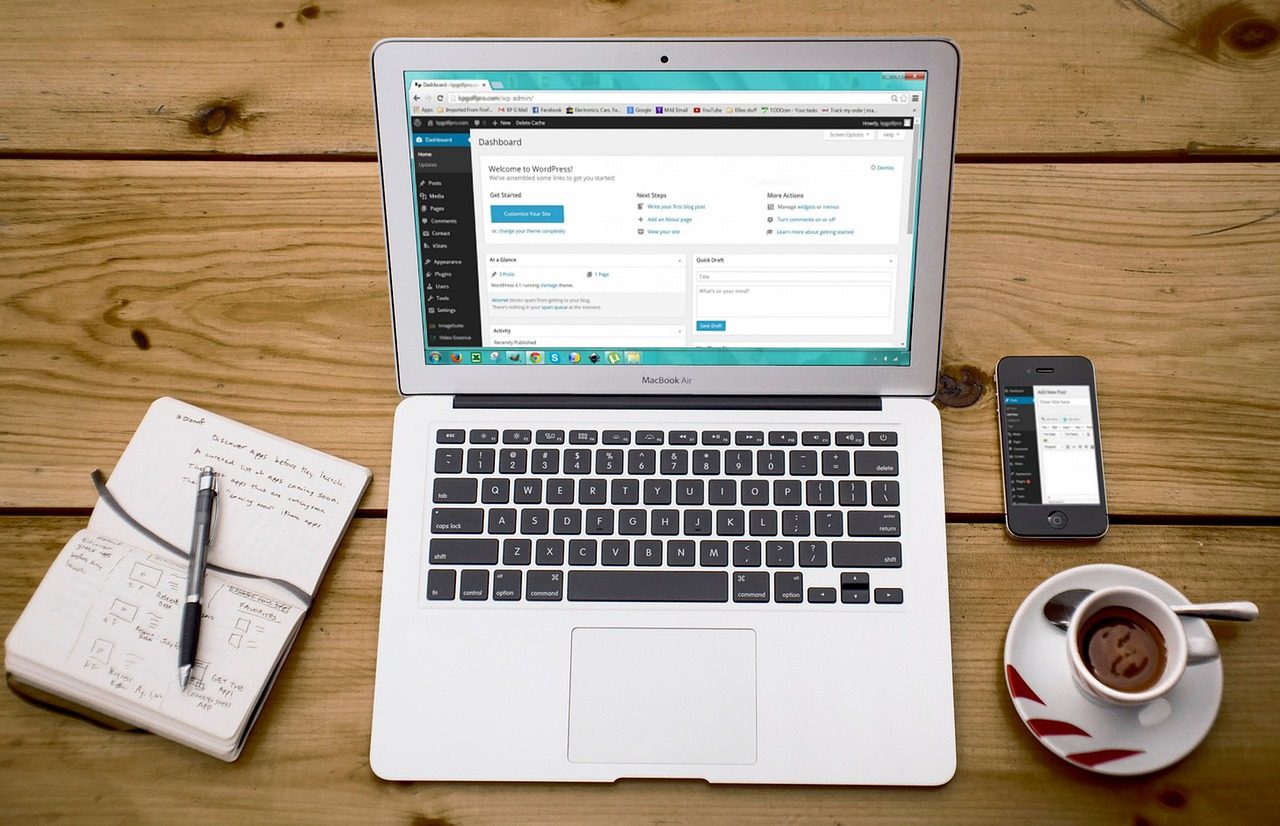
To unpublish a WordPress site, you can hide it from visitors with a maintenance page or password, block search engines while keeping it reachable, or delete it entirely. WordPress does not have a single switch labeled unpublish site, so the method you choose depends on whether you want the change to be reversible. For most beginners, the safest path is to hide the site first and decide about deletion later.
This guide explains each option, shows which one fits your goal, and walks through the steps in order. It also covers the mistakes that cause the most trouble, such as deleting a site before you have a verified backup.
Key Takeaways
- WordPress has no built-in button that takes a whole site offline, so you combine settings, plugins, or hosting tools to do it.
- Back up your files and database before you change visibility settings or delete anything.
- The Discourage search engines option in Settings > Reading asks search engines not to index your site, but it does not block visitors.
- A maintenance mode plugin or password protection at your host hides the site from visitors and can be reversed in minutes.
- Deleting a WordPress site is permanent unless you have a backup stored outside the site, so treat deletion as the final step.
What Does It Mean to Unpublish a WordPress Site?
Unpublishing a site makes it unavailable to visitors while your content and files stay on the server. In WordPress, publish usually refers to individual posts and pages, so unpublishing a whole site means changing visibility across the entire installation. An installation is the set of WordPress files and database that runs one website.
Unpublishing is different from deleting. A hidden site can be restored with a few settings changes, while a deleted site requires a backup to recover.
Before You Unpublish Anything, Make a Backup
Create a full backup of your files and database before you change any setting. A backup gives you a way back if a plugin conflicts with your theme or if you later decide to restore the site. You can use your host’s backup tool or a plugin, and our guide to the best WordPress backup plugins explains the options in more detail.
- Log in to your hosting control panel and create a full backup, or run a backup plugin such as one from the guide linked above.
- Go to Tools > Export in your WordPress dashboard and download an XML file of your posts, pages, and comments as a second copy of your content.
- Download the wp-content folder with your host’s file manager or an FTP client. This folder holds your uploads, themes, and plugins.
- Open or restore a test copy of the backup to confirm the files are complete before you move on.
How Do You Unpublish a WordPress Site?
The most reversible methods are a maintenance page, password protection, or private content, and each one hides your site in a different way. Choose the method that matches how long you need the site hidden and who should still be able to see it.
Option 1: Discourage Search Engines
Go to Settings > Reading, check the box labeled Discourage search engines from indexing this site, and save your changes. WordPress then adds a noindex signal and updates your robots.txt file, which asks search engines to stay away from the site. This option does not hide the site, so anyone with the URL can still open it.
Option 2: Use a Maintenance Mode Plugin
A maintenance mode plugin shows visitors a custom message instead of your pages while you work. Install one from Plugins > Add New, activate it, and customize the message. Logged-in administrators usually keep full access, so you can keep working on the site. If you are new to extensions, our explainer on how WordPress plugins work covers installing and managing them safely.
Option 3: Password Protect the Site at Your Host
Password protection at the host level stops visitors before WordPress even loads, which makes it the strongest way to hide the entire site without a plugin. Many hosts offer this in the control panel under a directory privacy or password protect directories tool. If you cannot find it, your host’s support team can add it for you.
- Log in to your hosting control panel and open the directory privacy tool.
- Select the public_html folder, which holds your WordPress files.
- Name the protected area, then create a username and a strong password.
- Open your site in a private browser window to confirm the login prompt appears.
Option 4: Set Content to Private or Draft
You can hide individual pages and posts by changing their status to Private or Draft. Private content is visible only to logged-in users with the right permissions, while drafts are not published at all. For a site with many posts, use the bulk edit options in the Posts and Pages screens to change several items at once.
Comparing the Four Methods
The table below summarizes how each method affects visitors, search engines, and reversibility.
| Method | What visitors see | Search engine effect | Easy to reverse | Best for |
|---|---|---|---|---|
| Discourage search engines | The full site | Asked not to index it | Yes | Keeping the site out of search while you test |
| Maintenance mode plugin | A custom message | Usually not indexed while active, often with a 503 status | Yes | Short pauses and redesigns |
| Host password protection | A login prompt | Content is not accessible to crawlers | Yes | Hiding a full site without a plugin |
| Private or draft content | Nothing for private or draft items | Private pages are not indexed | Yes | Hiding specific pages or posts |
How Do You Delete a WordPress Site Permanently?
To delete a WordPress site, remove its files and its database from your hosting account, then cancel the hosting plan if you no longer need it. This is permanent, so confirm that your backup is complete and stored outside the site first.

- Confirm that your backup includes both the files and the database, and keep a copy on your computer or cloud storage.
- Decide what happens to your domain name. Domain registration is billed separately from hosting, so renew it if you want to keep others from registering it.
- Delete the WordPress files in public_html, or ask your host to remove them.
- Open the MySQL Databases tool in your control panel and delete the database that belonged to the site.
- Cancel the hosting plan or downgrade it, and check the renewal date so you are not billed for a site you no longer run.
What Mistakes Should You Avoid?
The most common mistakes are skipping the backup, forgetting that the site still runs, and leaving access open to people who no longer need it. Review this checklist before you finish.
- Create and test a backup before you change settings or delete files.
- Turn Discourage search engines back off when you relaunch, or the site will stay out of search results.
- Keep software updated while the site is hidden, because a hidden site can still be attacked. If you notice unusual activity, follow the steps in our guide to what to do if your WordPress site gets hacked.
- Review user accounts and remove or downgrade people who no longer need access. Our guide on how to manage WordPress user roles and permissions explains the options.
- Check that your domain, email, and any subdomains still point where you need them before you cancel services.
Frequently Asked Questions
Can I unpublish a WordPress site without deleting it?
Yes. A maintenance mode plugin, password protection at your host, or the Discourage search engines setting can hide your site while keeping all content and files intact. You can restore the site later by reversing the change.
Will Google remove my site if I unpublish it?
Search engines update their indexes on their own schedule, so there is no fixed timeframe for removing a site. Using the Discourage search engines setting or private content generally keeps pages out of results over time. Password protection or a maintenance page can also prevent crawlers from reading your content.
Does unpublishing a site delete my domain name?
No. Your domain is registered separately from your hosting and WordPress installation, so hiding or deleting the site does not cancel the domain. Check your registrar’s renewal date if you want to keep the name.
Can visitors still see my site if I use the Reading setting?
Yes. The Discourage search engines option only asks search engines to skip your site, so anyone with the URL can still open it. Use a maintenance page or password protection if you need to block visitors.
How do I bring my site back online?
Reverse the change you made. Uncheck the Reading setting, deactivate the maintenance plugin, remove the host password, or set your private content back to published. Then view the site in a private browser window to confirm it loads correctly.
Should I delete a WordPress site or just hide it?
Hide the site first if you might need it again, because hiding is reversible and deletion is not. Delete the site only when you are sure you no longer need the content and you have a verified backup stored somewhere safe.
Conclusion
The core answer to wordpress how to unpublish a site is to back up first, then hide the site with a reversible method such as a maintenance page or host password. Delete it only after you have confirmed that you no longer need the content, the domain, or the data.