To clean malware from your WordPress site easily, first, look for signs like unexpected pop-ups or slow loading times. Backup your site to protect your data. Then, scan for malware using a security plugin, quarantine infected files, and follow the plugin’s instructions to delete or repair them. After cleaning, update all themes and plugins. Finally, take steps to secure your site against future threats, and you’ll discover more tips to keep your site safe.
Identify the Signs of Malware Infection
How can you tell if your WordPress site has been infected with malware? Watch for common malware symptoms like unexpected pop-ups, slow loading times, or strange redirects.
If your site suddenly displays unfamiliar content or you can’t access your admin panel, that’s a red flag. You might also notice unauthorized changes to your posts or pages.
Check your analytics; a sudden drop in traffic could indicate an infection.
A sudden drop in traffic could be a warning sign of malware infection on your site. Stay alert!
Infection sources often include outdated themes or plugins, as well as weak passwords. If you receive warnings from your hosting provider or security plugins, take them seriously. Regular updates of WordPress core, themes, and plugins are crucial for security.
Identifying these signs early can help you clean your site before the situation worsens. Stay vigilant and keep your site secure!
Backup Your WordPress Site Before Cleaning

Once you’ve identified signs of malware infection, the next step is to back up your WordPress site. This vital step helps protect your data integrity, making certain you have a safe copy before you start cleaning.
You can use various backup strategies, like automated plugins or manual backups via your hosting provider. Choose one that suits your needs and guarantees you capture the entire site, including themes, plugins, and databases.
Don’t skip this step; having a reliable backup lets you restore your site quickly if something goes wrong during the cleaning process. Taking this precaution not only secures your valuable content but also gives you peace of mind as you tackle the malware issue head-on. Additionally, using a backup plugin with automated backups can streamline the process and ensure you never miss a backup.
Step-by-Step Guide to Remove Malware
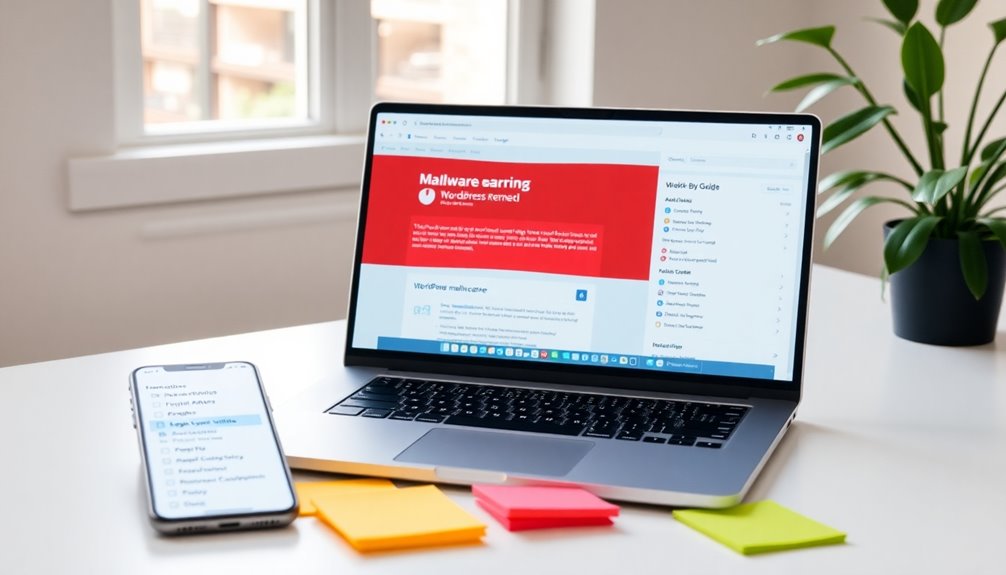
Start by scanning your WordPress site with a reputable security plugin to identify and locate malware. Different malware types, like backdoors and trojans, can hide in various parts of your site, so thoroughness is key. Here’s a simple step-by-step guide to clean your site:
- Quarantine Infected Files: Use your security plugin to isolate any malicious files found during the scan.
- Remove Malware: Follow the plugin’s instructions to delete or repair infected files, ensuring you choose effective cleaning methods.
- Update Everything: After cleaning, update your themes, plugins, and WordPress core to patch vulnerabilities. Additionally, consider using a security plugin like MalCare Security for ongoing protection against future threats.
How Can You Secure Your Site to Prevent Future Infections?
To keep your WordPress site safe from future infections, implementing proactive security measures is essential.
Start by installing security plugins that offer features like firewalls and malware scanning. Make certain to perform regular updates for your themes, plugins, and WordPress core to patch vulnerabilities.
Use strong passwords for all accounts, and consider enabling two-factor authentication for extra protection.
Review user permissions to guarantee that only trusted individuals have access to sensitive areas of your site.
Additionally, utilize monitoring tools to track suspicious activity and set up alerts.
Finally, conduct routine site audits to identify potential security gaps and fix them before they become issues. Incorporating a reliable security plugin can greatly enhance your site’s resilience against future threats.
These steps will greatly enhance your site’s resilience against future threats.
Tools and Resources for Ongoing Protection
While securing your WordPress site is essential, having the right tools and resources for ongoing protection can make all the difference. Here’s what you need to take into account:
- Malware Scanners: Use reliable malware scanners to regularly check your site for vulnerabilities and potential threats. They’ll help you catch issues early.
- Security Plugins: Install security plugins that offer features like firewall configurations and user permissions management. This adds an extra layer of defense against attacks.
- Website Monitoring: Implement website monitoring tools that alert you to suspicious activities or changes. Regular updates for your themes and plugins are vital, too, to keep everything secure. Additionally, utilizing premium plugins can bolster your defenses and ensure continuous updates for the latest security patches.
Conclusion
Cleaning malware from your WordPress site can feel like battling a dragon, but with the right tools and steps, you can emerge victorious. By following the guide and securing your site, you not only protect your digital castle today but also fortify it against future invasions. Remember, a vigilant knight keeps their armor polished and ready. Stay proactive, and your site will remain a safe haven for visitors, free from the clutches of malicious attacks.