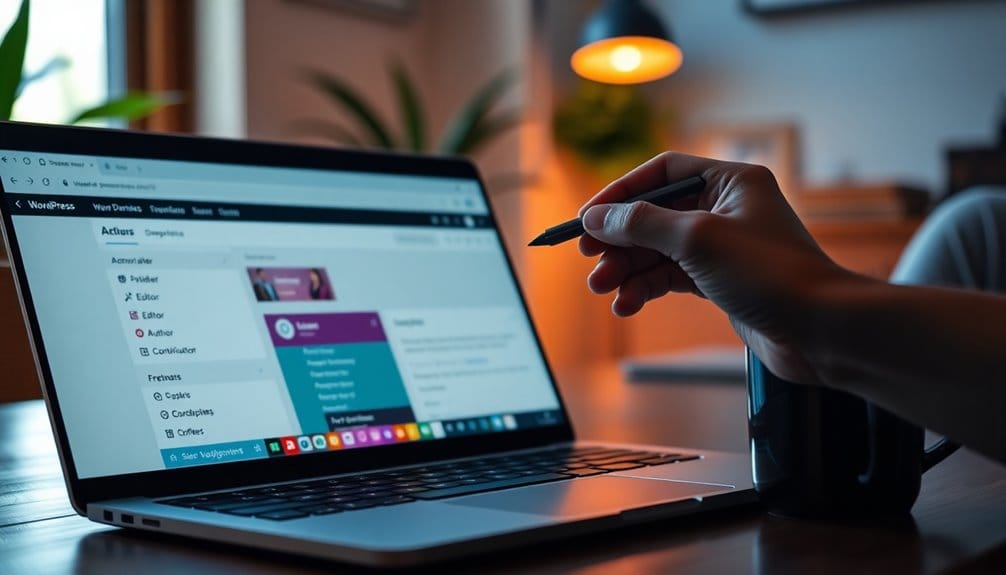
To manage WordPress user roles and permissions, start by understanding the six main roles: Administrator, Editor, Author, Contributor, Subscriber, and their specific capabilities. You can add or remove users via the Users section, ensuring you assign the right role for their tasks. Consider using plugins for customizing roles to fit your needs better. Regular audits and permission reviews help maintain security and clarity. There’s more to explore on best practices that can enhance your site’s functionality.
The Different User Roles in WordPress
In WordPress, there are six main user roles, each with specific capabilities that cater to different needs. Understanding these roles helps you manage your site effectively.
The Administrator has complete control, allowing full access to all user capabilities. Editors can manage content and moderate comments but lack administrative powers. Authors can write and publish their own posts, while Contributors can only write and save drafts. Subscribers have minimal capabilities, mainly managing their profiles.
This role hierarchy guarantees that users only have the permissions necessary for their tasks, enhancing security and organization. By assigning the right roles, you streamline workflow and maintain a well-structured site, ultimately leading to a better user experience for everyone involved. Additionally, implementing strong passwords can further safeguard these user roles against unauthorized access.
Understanding Permissions for Each Role

While managing your WordPress site, it’s essential to understand the specific permissions tied to each user role. Each role has a unique permission hierarchy that defines what users can do.
For instance, administrators have full access, while editors can manage content but not settings. Knowing these role capabilities helps you guarantee that user access aligns with their responsibilities. This understanding is vital for effective role management, as incorrect role assignment can lead to security implications. By defining appropriate permission levels, you enhance user accountability and protect your site from unauthorized changes.
Regularly reviewing these permissions guarantees that users have the right access based on their current roles, maintaining both security and functionality. Additionally, implementing security plugins for WordPress can further safeguard your site against unauthorized access and potential threats.
How to Add and Remove Users in WordPress?
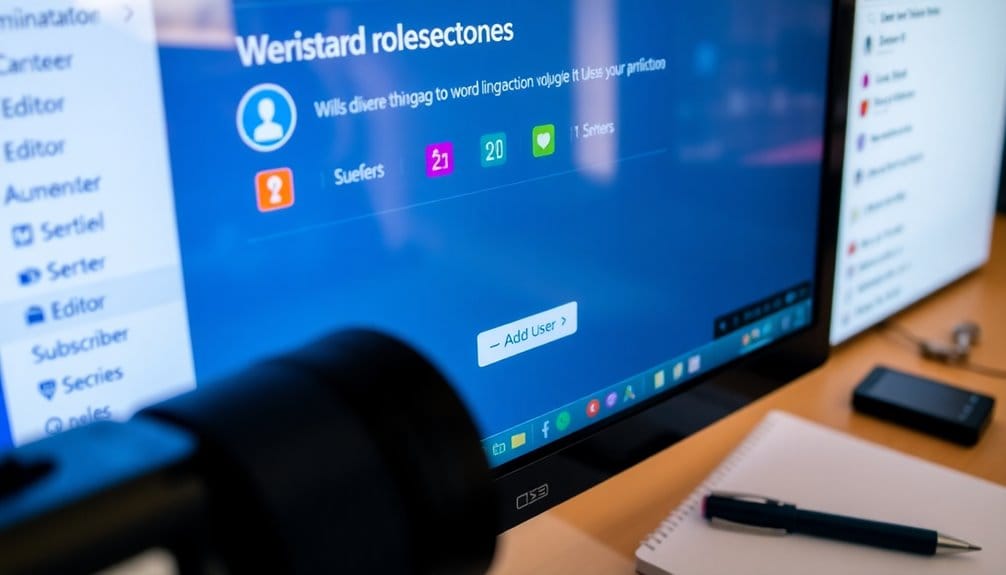
Managing user roles is just the beginning; knowing how to add and remove users is equally important for maintaining your WordPress site.
To add a new user, navigate to the Users section in your dashboard and click “Add New.” Fill out the necessary details, like username and email, and select a role. This guarantees proper user management right from registration.
Navigate to the Users section, click “Add New,” and fill in the details to ensure proper user management from the start.
When you need to remove a user, go back to the Users list, find the user you want to delete, and click “Delete.” Confirm the action, and they’ll be removed from your site.
Regularly managing users helps maintain security and assures that only the right people have access to your content. Understanding user roles is essential for keeping your site organized and efficient!
Customizing User Roles With Plugins
When it comes to customizing user roles in WordPress, plugins are your best friend. You can easily create custom roles or manage existing ones with popular role management plugins. Additionally, using plugins that offer automated backups ensures that your user role changes are secure and recoverable in case of any issues.
Popular Role Management Plugins
If you want to take full control over user roles in WordPress, utilizing role management plugins can be a game-changer.
These tools let you easily adjust the role hierarchy and set specific permission levels for different users. Popular plugins like User Role Editor and Members provide intuitive interfaces for managing roles and capabilities.
With these plugins, you can create, edit, or delete roles as needed, ensuring users have just the right access to your site.
Additionally, Advanced Access Manager allows for detailed control over permissions based on user roles.
Creating Custom Roles Easily
Creating custom user roles in WordPress is straightforward, especially with the right plugins at your disposal. With tools like User Role Editor or Members, you can easily manage custom role creation to fit your site’s needs.
These plugins allow you to define specific capabilities for each role, giving you user role flexibility that standard settings simply don’t provide.
You can create roles for editors, contributors, or even unique roles tailored to your business. Just install your chosen plugin, navigate to the user roles section, and start customizing!
This way, you guarantee that everyone has the appropriate permissions, enhancing both security and functionality on your site. Don’t hesitate to explore these options to optimize your WordPress user experience.
Best Practices for Managing User Permissions
To manage user permissions effectively, it’s essential to define user roles clearly. This guarantees everyone knows their responsibilities and limits their access appropriately. Regularly auditing permissions helps you keep track of who’s access to what, preventing any security risks. Implementing a backup solution ensures that your data is safe in case of any user-related mishaps, aiding in disaster recovery planning.
Define User Roles Clearly
When you define user roles clearly, it not only streamlines your site’s management but also enhances security. A well-structured user role hierarchy helps you assign permissions effectively, ensuring everyone knows their responsibilities.
By implementing solid role management strategies, you can prevent unauthorized access and maintain your site’s integrity.
- Feel secure knowing only trusted users have access to sensitive areas.
- Empower your team by giving them the right tools for their tasks.
- Reduce confusion and conflicts with clearly outlined responsibilities.
- Protect your site’s reputation by minimizing risks associated with poor permissions.
Regularly Audit Permissions
Once you’ve defined user roles clearly, it’s important to regularly audit permissions to confirm they align with current needs and responsibilities.
Conducting a user role audit helps you identify any discrepancies between assigned roles and actual user activities. Schedule permission reviews every few months or whenever there’s a significant team change.
During these audits, check for outdated accounts, unnecessary permissions, or roles that no longer fit a user’s responsibilities. If someone no longer needs access to certain areas, adjust their permissions accordingly.
This proactive approach not only enhances security but also confirms your team can focus on their tasks without unnecessary hindrances.
Regular audits create a streamlined environment, promoting efficiency and accountability across your WordPress site.
Troubleshooting Common User Role Issues
Resolving user role issues in WordPress can be frustrating, but with a systematic approach, you can quickly identify and fix common problems.
Resolving user role issues in WordPress can be challenging, but a systematic approach makes identifying and fixing problems easier.
Start by checking for user role conflicts that might lead to permission errors. Here are some troubleshooting tips to guide you:
- Double-check role assignments—it’s easy to make common mistakes.
- Review custom capabilities—they mightn’t be set as you expect.
- Clear your cache—sometimes, what you see isn’t what’s happening.
- Revoke and reassign roles—it can reset any underlying issues.
Additionally, ensure you have a backup of your site before making significant changes, as this can prevent unpublishing content unexpectedly and safeguard your data.
Conclusion
Managing WordPress user roles and permissions can feel like juggling flaming swords, but with the right approach, you’ll master it in no time! By understanding the different roles, customizing them as needed, and following best practices, you can create a seamless experience for your users. Don’t let user management overwhelm you—take charge, simplify your processes, and watch your site flourish like never before! Remember, a well-managed site is the key to revealing its full potential!