
To change your WordPress site URL without breaking everything, back up your files and database first. Then, head to “Settings” in the dashboard to update your WordPress and Site Address. You can also adjust the wp-config.php file for added security. Don’t forget to set up 301 redirects to preserve SEO and check for broken links afterward. By following these steps, you’ll guarantee a smooth shift, and there’s more essential info to guide you along the way.
Why You Might Need to Change Your WordPress Site URL
You might need to change your WordPress site URL for several reasons, especially if you’re rebranding or moving to a new domain.
Site migration often requires updates to your URL structure to maintain branding consistency. By adjusting your site URL, you can enhance performance optimization and improve user experience.
If you’re facing security concerns, switching to a more secure domain can be vital. Furthermore, domain changes can greatly impact your SEO, so it’s important to handle this shift carefully. A well-planned URL change helps retain your search rankings while making sure visitors find your new site easily.
Additionally, keeping your site secure is essential; using security plugins can help monitor vulnerabilities and protect your new URL.
Ultimately, keeping these factors in mind guarantees a smooth changeover that benefits both your brand and your audience.
Preparing for the Change: Backups and Safety Measures
Before making any changes to your WordPress site URL, it’s crucial to prioritize backups and safety measures.
Start with solid backup strategies, including file backups and database management. Consider using reliable plugin recommendations like UpdraftPlus or BackupBuddy for efficient backups.
Begin with robust backup strategies, utilizing trusted plugins like UpdraftPlus or BackupBuddy for effective file and database management.
Establish safety protocols by notifying users about potential downtime during the changeover, and plan for any necessary downtime.
Create test environments to simulate the alteration before going live, guaranteeing everything works seamlessly.
Don’t forget theme considerations; some themes may require adjustments post-change. Additionally, ensure to test backup restoration processes periodically to verify functionality.
How to Update Your WordPress Address in the Settings?
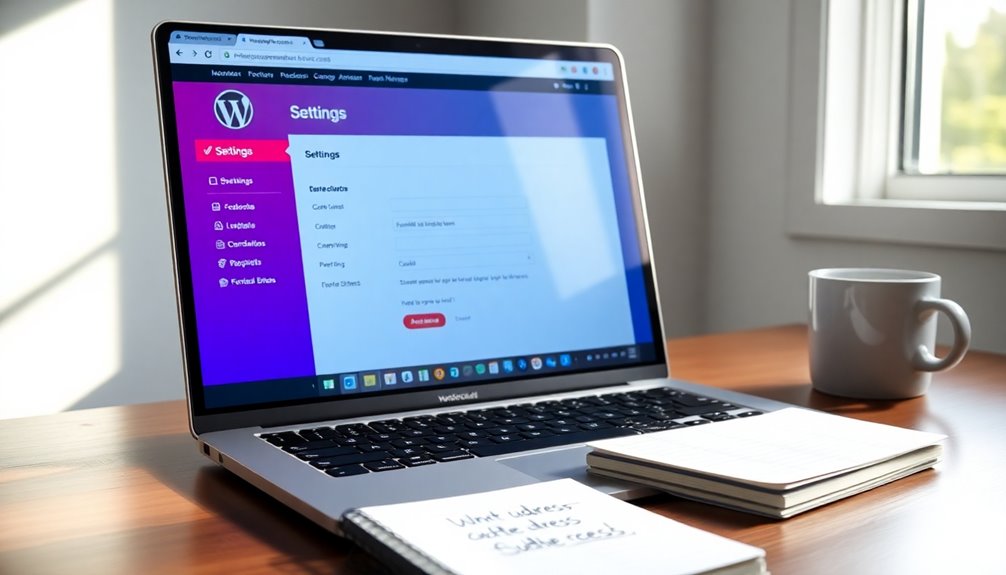
With your backups securely in place and safety measures established, it’s time to update your WordPress address in the settings.
First, log into your WordPress dashboard. Navigate to “Settings” and then click on “General.”
Here, you’ll find the fields for your WordPress Address (URL) and Site Address (URL). Carefully enter the new URL you want to use in both fields, making sure there’s no extra space or typo.
After making these changes, scroll down and click “Save Changes.” Your site will now reflect the new URL settings. Additionally, ensure that you regularly update your WordPress core, plugins, and themes to maintain security after changing your site URL.
Adjusting the Site Address in Your Wp-Config.Php File
To adjust your site address in the wp-config.php file, start by accessing your website’s root directory via FTP or your hosting provider’s file manager.
Once you’re in, locate the wp-config.php file. Open it with a text editor, and look for the lines that define the site address.
You’ll want to add or modify the following lines:
“`php
define(‘WP_HOME’, ‘http://yournewsite.com’);
define(‘WP_SITEURL’, ‘http://yournewsite.com’);
“`
Replace ‘http://yournewsite.com’ with your actual site address.
After making the changes, save the file and re-upload it if necessary. This adjustment in your config file should help guarantee that your site operates smoothly under the new URL. Additionally, ensure your hosting setup includes specialized security features to protect your site during this transition.
Updating Your Database for URL Changes
Once you’ve adjusted your site address in the wp-config.php file, it’s important to update your database to reflect the new URL. This step is vital for proper database migration and ensuring your site functions smoothly.
Start by using a tool like phpMyAdmin to access your database. You’ll need to run SQL queries to replace the old URL with the new one. Pay special attention to URL serialization, as serialized data can break if the string length changes.
Use the `UPDATE` command wisely to modify the relevant tables, such as `wp_options`, `wp_posts`, and `wp_postmeta`. After executing these changes, double-check your site to confirm everything’s working as expected. Regularly reviewing your DNS settings is essential for maintaining site accessibility and avoiding potential issues.
Redirecting Old URLs to Preserve SEO
After updating your database, it’s important to focus on redirecting old URLs to maintain your site’s SEO ranking.
Implementing 301 redirects guarantees that visitors land on the right pages, preserving user experience and boosting traffic retention. This practice not only retains page authority but also enhances your link building efforts, as search engines like Google Search recognize and value the continuity.
Implementing 301 redirects ensures visitors reach the correct pages, enhancing user experience and preserving your site’s authority.
For added SEO benefits, consider using canonical tags to prevent duplicate content issues. Additionally, ensure you regularly check internet connection stability to avoid potential disruptions during updates.
Don’t forget to incorporate analytics tracking to monitor changes and measure performance.
Checking for Broken Links After the Change
Regularly checking for broken links after changing your WordPress site URL is vital for maintaining a seamless user experience.
Use a reliable link checker or broken link tools to identify any issues quickly. While automated scripts can save time, don’t skip manual verification to catch any missed links, especially image links.
Conduct a thorough site audit to guarantee all content updates reflect the new URL. Remember, broken links can harm your SEO impact, so addressing these issues promptly is essential. Additionally, ensure that your plugins and themes are compatible with the new URL structure to prevent any further errors.
After fixing links, make any necessary analytics adjustments to track your site’s performance accurately.
How to Update Permalinks for Consistency?
Once you’ve changed your WordPress site URL, it’s essential to update your existing permalinks for a smooth experience.
You’ll also need to redirect old URLs to the new ones to prevent broken links and guarantee visitors find the right content. Regularly updating content signals site activity to search engines, enhancing your SEO effectiveness.
Let’s explore how to keep everything consistent and user-friendly.
Update Existing Permalinks
To guarantee a seamless experience for your visitors, updating your permalinks is essential whenever you change your WordPress site URL.
Start by heading to the Settings section in your dashboard and select Permalinks. Here, you’ll see options for your permalink structure. If you’ve been using custom permalinks, make certain to replicate that structure in your new URL format.
This guarantees all your links remain consistent and functional. Once you’ve adjusted the settings, save your changes.
It’s a good idea to double-check existing posts and pages, confirming they reflect the new structure. Regularly updating your permalinks not only improves your site’s usability but also helps maintain SEO value, keeping your content accessible to search engines and visitors alike.
Redirect Old URLs
After updating your permalinks, the next step is to redirect old URLs to guarantee visitors find their way to the right content.
Using 301 redirects is essential, as they inform search engines that your content has moved permanently, preserving link juice and aiding in SEO implications.
Implementing effective redirect strategies can enhance user experience by minimizing broken links.
Consider using plugin solutions to simplify the process and avoid redirect loops, which can confuse both users and search engines.
Don’t forget to add canonical tags where necessary to indicate the preferred version of your content.
Finally, tracking changes and monitoring traffic helps you assess the effectiveness of your redirects and make adjustments as needed.
Troubleshooting Common Issues After Changing Your URL
Changing your WordPress site URL can be a straightforward process, but it often leads to unexpected issues that need addressing.
Start with link checks to make certain all internal and external links direct correctly.
Watch for plugin conflicts, especially those related to caching, which can cause cache issues.
Clear your browser caching to see the latest changes.
Check media links and verify they’re updated to reflect the new URL.
You might need theme adjustments to align with the new settings.
Be mindful of mixed content warnings if you’ve changed SSL settings.
Finally, verify user access and check search indexing to make sure your site remains discoverable. Incorporating security plugins can help safeguard your site during this transition.
Addressing these issues promptly will keep your site running smoothly.
Conclusion
Changing your WordPress site URL can feel like maneuvering through a maze, but with the right steps, you can emerge unscathed. By following the outlined procedures, you’ll guarantee a smooth changeover without losing your hard-earned traffic. Don’t forget to check for broken links and update your permalinks to keep everything running smoothly. Remember, a little preparation goes a long way, so stay proactive and your site will continue to thrive in its new digital home!