
Automating WordPress maintenance can save you time while keeping your site running smoothly. In just 15 minutes a week, focus on essential tasks like optimizing site performance, managing plugins, and scheduling automated backups and security checks. By choosing the right tools, you can streamline these processes effortlessly. Plus, implementing security measures on autopilot guarantees your site stays protected. If you stick around, you’ll uncover more tips to enhance your maintenance routine.
Why Automating WordPress Maintenance Saves You Time

When you automate WordPress maintenance, you not only streamline your workflow but also reclaim valuable time that can be better spent on growing your site.
By implementing automation tools, you enhance time efficiency and reduce the risk of errors that come with manual tasks. This shift allows you to focus on task prioritization, directing your energy toward strategic initiatives rather than routine upkeep.
Implementing automation tools boosts efficiency and minimizes manual errors, enabling you to prioritize strategic initiatives over routine tasks.
You can set up automated backups, updates, and security checks, ensuring your website runs smoothly without constant oversight. As a result, you can dedicate more time to content creation, marketing, and engaging with your audience. Additionally, utilizing WordPress backup plugins ensures that your data is securely protected against potential threats.
Ultimately, automating maintenance frees you from repetitive tasks, allowing you to work smarter, not harder, to achieve your goals.
Essential Tasks to Include in Your Weekly Routine
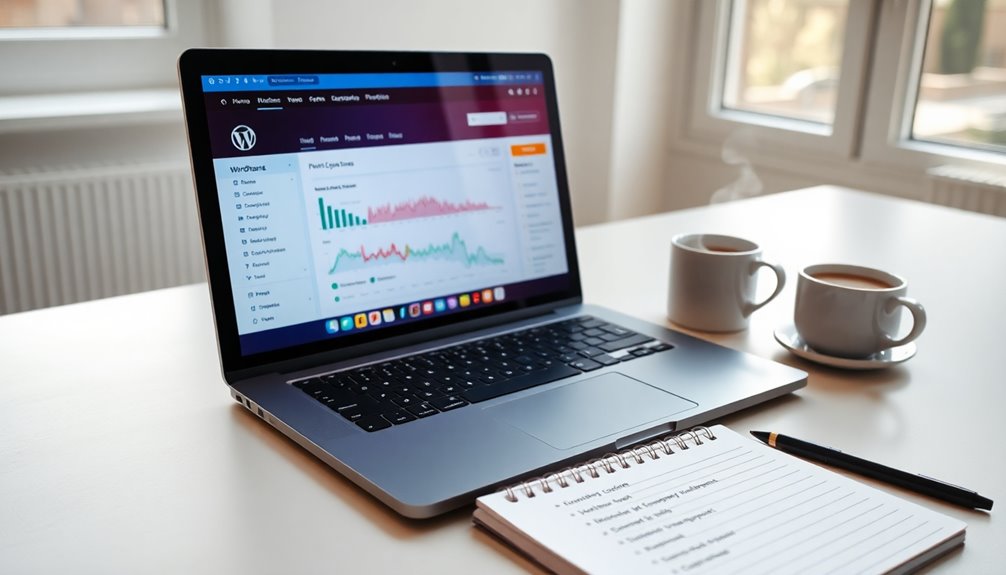
Automating your WordPress maintenance tasks opens up the opportunity to establish a structured weekly routine that keeps your site healthy and efficient.
To guarantee your site runs smoothly, focus on these essential tasks:
1. Site Optimization: Regularly check your site speed and performance metrics.
Use tools to identify areas for improvement, like image compression and caching.
2. Plugin Management: Review your installed plugins weekly.
Deactivate and delete any that aren’t in use, and update those that are to enhance security and functionality.
3. Backups: Automate your Backups to guarantee you have a recent copy of your site.
Schedule them to run weekly, storing them securely offsite, as recommended backup frequency ensures your data is protected against potential loss.
Choosing the Right Tools for Automation

How can you assure your WordPress maintenance tasks are streamlined and efficient? The key lies in smart tool selection.
Look for plugins and software that automate backups, updates, and security checks. This not only saves you time but also enhances your site’s performance. Regular backups, such as those provided by backup plugins, can significantly improve your site’s resilience and security.
Consider tools that integrate seamlessly with your existing workflow, so you won’t have to juggle multiple platforms. The automation benefits are clear: reduced manual effort, fewer errors, and peace of mind knowing your site is well-maintained.
Read user reviews and explore free trials to find the best solutions that fit your needs.
How to Schedule Backups and Updates Automatically?
What’s the best way to guarantee your WordPress site stays updated and secure?
Automating backups and updates is key. Here’s how to do it effectively:
- Choose a Backup Plugin: Select a reliable plugin that allows you to set your backup frequency—daily, weekly, or monthly—based on your content changes.
- Schedule Automatic Updates: Enable automatic updates for themes and plugins, and set update intervals for WordPress core updates to make sure you’re always running the latest version.
- Store Backups Offsite: Configure your backups to be stored in a cloud service, keeping your data safe in case of a site failure. Regular backups protect content from data loss due to various threats, ensuring your site remains secure.
Monitoring Site Performance: What You Need to Know
While you might focus on creating great content, keeping an eye on your site’s performance is just as essential. Monitoring your site speed regularly helps guarantee your visitors have a smooth experience.
Use performance metrics to gauge how quickly your pages load and where potential bottlenecks may lie. Tools like Google PageSpeed Insights or GTmetrix can provide valuable insights into your site’s speed, helping you identify areas for improvement. Additionally, consider implementing SEO optimization plugins to enhance loading times and improve site performance.
Aim for a loading time under three seconds, as this can considerably impact user satisfaction and SEO rankings.
Security Measures to Implement on Autopilot
When it comes to securing your WordPress site, automating key measures can save you time and headaches. You’ll want to focus on regular plugin updates, enforcing strong passwords, and scheduling automated backups. Implementing these steps on autopilot helps protect your site while you concentrate on other important tasks. Additionally, regular backup schedules ensure that your site remains safeguarded against data loss and downtime.
Regular Plugin Updates
Regular plugin updates are essential for maintaining your WordPress site‘s security, especially since outdated plugins can become easy targets for cyberattacks.
To guarantee you’re keeping your site safe, follow these simple steps:
- Set a regular update frequency: Aim for weekly updates to catch vulnerabilities early.
- Check for plugin compatibility: Before updating, review the changelog to avoid conflicts with your theme or other plugins.
- Enable automatic updates: Where possible, allow WordPress to update plugins automatically, reducing manual oversight.
Strong Password Enforcement
To guarantee your WordPress site remains secure, enforcing strong password policies is essential. By implementing these policies, you can considerably enhance user authentication processes and minimize the risk of unauthorized access.
Encourage users to create complex passwords that include a mix of uppercase and lowercase letters, numbers, and special characters.
Consider using plugins that automatically enforce these strong password requirements during account creation and password changes. Additionally, set up regular reminders for users to update their passwords periodically.
This way, you’ll not only bolster your site’s security but also foster a culture of accountability among your users.
Automating these measures can save you time and guarantee that strong password policies are consistently applied across your site.
Automated Backups Scheduling
Automating backup scheduling is an essential step in safeguarding your WordPress site against data loss. By setting up a reliable system, you can guarantee your data is protected without manual intervention.
Here’s what you should consider:
- Backup Frequency: Decide how often you want backups—daily, weekly, or monthly depending on your site’s activity level.
- Cloud Storage: Choose a secure cloud storage solution to store your backups, making certain they’re safe from local hardware failures.
- Notification System: Set up alerts to notify you if a backup fails, so you can address issues promptly.
Implementing these measures means your site remains secure, and you can focus on creating content rather than worrying about data loss.
Tips for Troubleshooting Common Maintenance Issues
Ever wondered how to quickly address common maintenance issues in WordPress? Start by checking for error messages that pop up on your site. These messages often provide clues to the underlying problems.
Check for error messages on your WordPress site; they often reveal the underlying maintenance issues.
If you suspect plugin conflicts, deactivate all plugins and reactivate them one by one, testing your site after each activation. This way, you can identify which plugin is causing the issue.
Don’t forget to clear your cache after making changes, as cached data can sometimes mask your fixes. Additionally, database connection issues can often lead to unexpected downtime, so ensure your database credentials are accurately configured.
If you’re still facing issues, consider reaching out to your hosting provider for assistance, as they often have insights into server-related problems.
Conclusion
By automating your WordPress maintenance routine, you’re not just saving time; you’re also ensuring your site runs smoothly and securely. Think about it—consistent backups, timely updates, and performance monitoring can all happen without you lifting a finger. It’s like having a reliable assistant working behind the scenes. Embrace this approach, and you’ll find you can focus on what truly matters: creating great content and growing your audience, while your site stays in top shape.