


Last updated: · By Ryan Walsh
To set up Google reCAPTCHA on your WordPress forms, start by creating a Google account and registering your site to obtain your unique site and secret keys. Next, install a reCAPTCHA plugin from your WordPress dashboard. Activate it and configure the settings based on your preferred type—v2 or v3. Finally, test your forms to confirm everything’s working smoothly and enhance user experience. You’ll soon discover effective ways to monitor performance and guarantee robust security.
Why Use Google reCAPTCHA for WordPress Forms?
When you set up a WordPress form, adding Google reCAPTCHA can greatly enhance its security. It acts as a powerful tool for spam prevention, ensuring that your forms aren’t flooded with unwanted submissions. By filtering out bots and malicious users, reCAPTCHA helps keep your data safe and your site running smoothly.
Moreover, it improves the user experience. Users appreciate a clean, functional form that’s free from spam, making them more likely to interact with your content.
With reCAPTCHA, you strike a balance between security and usability, allowing genuine users to complete forms without unnecessary hurdles. This way, you maintain your site’s integrity while fostering a positive atmosphere for your visitors. Additionally, implementing tools like security plugins can further enhance the protection of your forms against potential threats.
Understanding the Different Types of Google reCAPTCHA
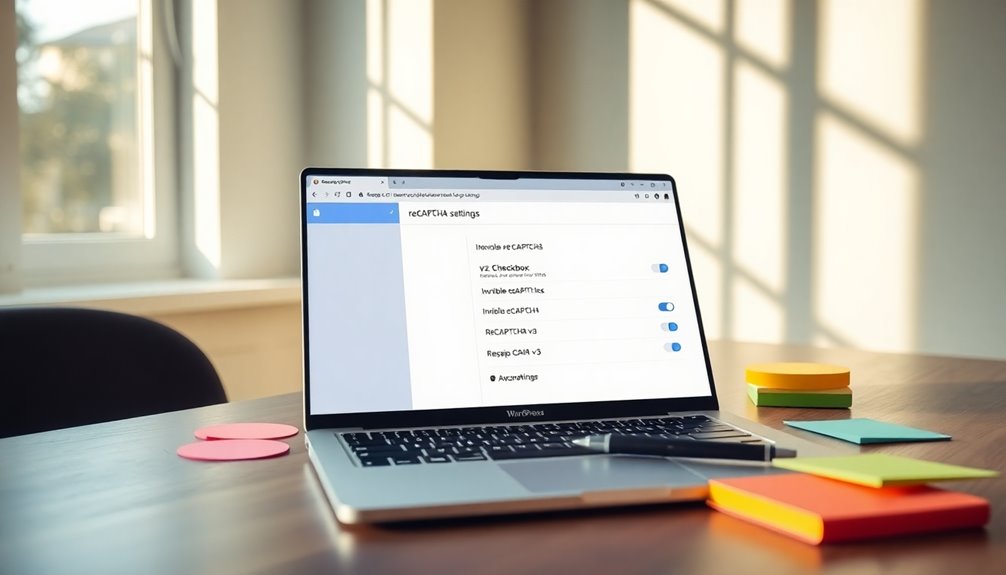
To effectively protect your WordPress forms, it’s essential to understand the different types of Google reCAPTCHA available. The main reCAPTCHA types include v2, v3, and the invisible version, each offering unique security features.
v2 requires user interaction, enhancing spam prevention but may impact user experience. v3 operates in the background, evaluating behavior without any challenge, though it can present implementation challenges.
When considering version comparisons, think about performance metrics and accessibility considerations, ensuring your forms are user-friendly. Additionally, integrating local SEO strategies can further enhance your site’s credibility and user trust.
Integration methods vary, allowing for customization options based on your needs. By choosing the right reCAPTCHA type, you can balance security and user experience effectively, creating a safer, more efficient form for your WordPress site.
Getting Started: Creating a Google reCAPTCHA Account

To get started with Google reCAPTCHA, you’ll first need a Google account if you don’t already have one.
Once you’re set up, register your site to receive your unique site key. This key is essential for integrating reCAPTCHA into your WordPress forms. Additionally, understanding customization best practices can help ensure a seamless integration of reCAPTCHA into your website.
Create Google Account
Creating a Google account is your first step toward setting up Google reCAPTCHA for your WordPress forms. This account offers numerous benefits, including enhanced Google security and streamlined user authentication.
With a simple account setup, you can access tools that greatly improve online safety for your site. By integrating Google reCAPTCHA, you’ll bolster spam prevention, ensuring that only genuine users interact with your forms.
To create your account, visit the Google sign-up page and follow the prompts. Make sure to use a secure password and enable two-factor authentication for added protection.
Once your account is set up, you’re ready to move on to registering your reCAPTCHA site and fortifying your WordPress forms against unwanted submissions.
Register reCAPTCHA Site
Once you’ve set up your Google account, registering your reCAPTCHA site is the next essential step. This process opens up the benefits of reCAPTCHA, helping to protect your forms from spam and bots.
However, be aware of some reCAPTCHA challenges you might face during setup.
Here’s what you need to do:
- Navigate to the reCAPTCHA admin console.
- Enter your site information and select the reCAPTCHA type you prefer.
- Agree to the terms and submit your registration.
Obtain Site Key
After registering your site, the next step involves obtaining your Site Key.
Head over to the Google reCAPTCHA admin panel, where you’ll find an option to generate your key. This key is vital for enhancing site key security and ensuring your forms are protected against bots.
Simply select the type of reCAPTCHA you want to use—v2 or v3—then fill in the required details about your site. Once you submit, you’ll receive your Site Key and a Secret Key.
Keep these secure, as they’re essential for reCAPTCHA usability on your forms. Make sure to copy and store them safely, as you’ll need them when configuring your WordPress settings.
How to Obtain Your reCAPTCHA Site and Secret Keys
To get started with Google reCAPTCHA, you’ll need to obtain your unique site and secret keys.
These keys are essential for integrating reCAPTCHA into your WordPress forms, allowing you to enjoy its benefits while acknowledging its limitations.
Here’s how to get your keys:
- Visit the Google reCAPTCHA site: Go to the reCAPTCHA admin console.
- Register your site: Fill in your website details and select the reCAPTCHA type you prefer.
- Copy your keys: Once registered, you’ll see your site key and secret key—make sure to save them.
With these keys, you can enhance your form security, reducing spam and bot submissions. Just remember, while reCAPTCHA offers considerable protection, it’s not foolproof and may occasionally frustrate genuine users. Additionally, implementing SEO optimization plugins can further enhance your site’s overall effectiveness.
Installing a WordPress reCAPTCHA Plugin
Installing a WordPress reCAPTCHA plugin is a straightforward way to secure your forms and protect against spam. Start by navigating to your WordPress dashboard, then go to Plugins > Add New.
Search for “reCAPTCHA” to explore various plugin options. Popular choices include WPForms, Contact Form 7, and Google Captcha. Once you find a suitable plugin, click “Install Now” and activate it.
After activation, you’ll see settings to integrate reCAPTCHA with your forms. Choose the type of reCAPTCHA you want to use, like v2 or v3, to enhance user experience. A well-implemented plugin not only helps block bots but also ensures genuine users can submit forms easily. Additionally, using security tools like Wordfence can further enhance your site’s protection against spam and other threats. With just a few clicks, you’re on your way to a safer site!
Configuring Your Plugin Settings for reCAPTCHA
Once you’ve activated your reCAPTCHA plugin, configuring its settings is crucial for maximum protection. By fine-tuning these options, you’ll enhance your site’s security and user experience.
Here’s what you should focus on:
- Configuring Security: Choose the right reCAPTCHA type (v2 or v3) that fits your needs.
- Adjusting Visibility: Set how and when reCAPTCHA appears to users, guaranteeing it doesn’t disrupt their experience.
- Integration Options: Verify compatibility with your forms, allowing smooth functionality without glitches.
After adjusting these settings, you’ll greatly improve your site’s defenses against spam and bots.
By fine-tuning these settings, you significantly bolster your site’s defenses against unwanted spam and bot activity.
Don’t forget to save your changes and test the functionality to confirm everything works as intended!
Adding reCAPTCHA to Your WordPress Forms
Now that you’ve configured your plugin settings, it’s time to add reCAPTCHA to your WordPress forms.
You’ll need to choose the right reCAPTCHA version that fits your site’s needs and integrate it with your existing plugins. This step will enhance your form security and keep spam at bay. Additionally, implementing measures like malware scanning can further bolster your site’s defenses against potential threats.
Select reCAPTCHA Version
When choosing a reCAPTCHA version for your WordPress forms, what factors should you consider? Understanding the different reCAPTCHA versions is essential for effective implementation strategies. Here are three key points to help you decide:
- User Experience: Choose a version that minimizes friction for your users. Version 3, for example, runs in the background and doesn’t require user interaction.
- Security Level: Assess the security features of each version. Version 2 offers a visible checkbox, while version 3 provides a score-based system.
- Compatibility: Verify the version you select works seamlessly with your existing plugins and themes.
Integrate With Plugins
To effectively add reCAPTCHA to your WordPress forms, you’ll want to choose a compatible plugin that streamlines the integration process. Popular choices like Contact Form 7, WPForms, and Gravity Forms offer built-in support for reCAPTCHA, ensuring smooth compatibility.
Once you’ve installed your chosen plugin, navigate to its settings and look for the reCAPTCHA options. Here, you’ll enter your site key and secret key from the Google reCAPTCHA dashboard.
By integrating reCAPTCHA, you’ll enjoy significant reCAPTCHA benefits, including reduced spam and enhanced security. After saving your settings, test the forms to confirm everything’s working properly.
With the right plugin, securing your WordPress site becomes straightforward and effective, allowing you to focus on what matters most.
Testing Your Forms With reCAPTCHA Enabled
Testing your forms with reCAPTCHA enabled is crucial to guarantee everything functions smoothly. You want to verify that form functionality remains intact while enhancing security measures.
Regular testing helps you spot any accessibility concerns and assess the performance impact on user experience.
Regular testing highlights accessibility issues and evaluates how security measures affect overall user experience.
Consider focusing on these key areas during testing:
- Form validation: Check that all fields are validating correctly with reCAPTCHA.
- User feedback: Gather insights from users to identify any confusion or issues.
- Spam prevention: Confirm that reCAPTCHA effectively blocks spam submissions.
Adjust your testing frequency to stay ahead of potential issues. Additionally, ensure that your testing aligns with strong SEO capabilities, as this can enhance your site’s overall performance.
Utilizing automation tools can help streamline this process, verifying your forms remain secure and user-friendly.
Customizing the reCAPTCHA Appearance on Your Site
Customize the reCAPTCHA appearance on your site to create a seamless user experience that aligns with your brand. Start by customizing colors to match your site’s palette, making it visually appealing.
Adjust sizes to guarantee it fits well within your forms, enhancing usability. Choosing themes can help maintain a consistent look, while adding logos boosts brand recognition.
Set styles to reflect your brand’s personality, and don’t forget to change fonts for better readability. Prioritize responsive design so that reCAPTCHA displays correctly across devices.
Troubleshooting Common reCAPTCHA Issues
Common issues with Google reCAPTCHA can disrupt user experience and hinder form submissions on your WordPress site.
Google reCAPTCHA issues can significantly impact user experience and prevent successful form submissions on your WordPress site.
To tackle these problems effectively, consider the following troubleshooting tips:
- Check for configuration issues: Confirm your API keys are correct and match the domain settings.
- Gather user feedback: Listen to users experiencing reCAPTCHA errors; their insights can reveal common mistakes.
- Address integration challenges: Review your form plugins for compatibility with reCAPTCHA to avoid performance problems.
How to Monitor and Analyze reCAPTCHA Performance
Once you’ve set up reCAPTCHA, it’s essential to monitor its performance. You’ll want to track submission rates to see how many users complete your forms and analyze engagement to understand their experience. This data helps you optimize your forms and guarantee a smoother interaction for your audience, especially when you consider that organic traffic accounts for over 50% of website visitors.
Track Submission Rates
Tracking submission rates for your forms with Google reCAPTCHA is essential for understanding how well your security measures are performing.
By monitoring these rates, you can gain insights into user behavior and improve your forms. Here are some ways to track submission analytics effectively:
- Set Up Analytics Tools: Use Google Analytics or similar tools to monitor submission rates and identify trends.
- Review Error Messages: Pay attention to any error messages users encounter, as these can indicate friction points in your forms.
- Analyze Drop-off Rates: Assess where users abandon the form to pinpoint areas needing improvement.
Analyze User Engagement
How can you effectively monitor and analyze the performance of Google reCAPTCHA on your WordPress forms? Start by collecting user feedback to gauge user satisfaction.
Utilize engagement metrics to assess form usability and identify areas for improvement. Track interaction rates to see how often users engage with your forms, and use behavior tracking tools to pinpoint any drop-off points.
Establish feedback loops to understand how changes impact user retention. Regularly review this data to refine your forms and enhance user experience.
Enhancing User Experience While Using reCAPTCHA
While implementing reCAPTCHA can greatly bolster your site’s security, it’s crucial to guarantee that it doesn’t detract from the user experience. You want to enhance user trust and retention while ensuring form accessibility.
Here are a few strategies to take into account:
- Mobile Responsiveness: Make sure the reCAPTCHA adapts seamlessly to all devices, maintaining design aesthetics.
- Visual Cues: Use clear instructions or prompts to guide users, improving interaction flow.
- User Feedback: Encourage feedback on the reCAPTCHA experience, allowing you to adjust based on engagement metrics.
- SEO Optimization: Integrating reCAPTCHA should also consider user engagement as it can improve site visibility and trustworthiness.
Alternatives to Google reCAPTCHA for WordPress Forms
If you’re looking for alternatives to Google reCAPTCHA for your WordPress forms, you’ve got some solid options.
The Akismet Anti-Spam plugin can effectively block spam without the hassle of captchas, while hCaptcha offers seamless integration for a user-friendly experience. Additionally, using reliable backup plugins ensures that your form data is protected against potential threats like data breaches.
Let’s explore how these alternatives can enhance your form security.
Akismet Anti-Spam Plugin
As you explore alternatives to Google reCAPTCHA for your WordPress forms, the Akismet Anti-Spam Plugin stands out as a reliable option. Known for its impressive Akismet effectiveness, it automatically filters out spam comments and submissions, ensuring a smoother user experience.
Here’s why you might consider using Akismet:
- Automatic Spam Detection: It continuously learns from millions of spam entries, enhancing its spam prevention capabilities.
- User-Friendly Setup: Integrating Akismet into your forms is quick and straightforward, allowing you to focus on other aspects of your site.
- Customizable Settings: You can tweak its features to fit your specific needs, giving you control over how spam is managed.
With Akismet, you can maintain a clean and effective WordPress environment.
hCaptcha Integration Options
Have you considered hCaptcha as an alternative to Google reCAPTCHA for your WordPress forms? hCaptcha offers several benefits, including improved privacy and a focus on user experience.
You can easily implement hCaptcha setup by installing a relevant plugin, such as WPForms or Contact Form 7. Once activated, you’ll need to create an hCaptcha account to get your site key and secret key.
After that, enter these keys in the plugin settings, and you’re good to go! hCaptcha not only helps protect your forms from spam but also allows you to earn rewards for bot traffic, making it a win-win.
Plus, it’s straightforward to customize, enhancing your site’s functionality seamlessly.
Best Practices for Securing Your WordPress Forms
While securing your WordPress forms might seem intimidating, implementing best practices can considerably reduce vulnerabilities.
Start by using effective form validation techniques to guarantee user inputs are correct and safe. This not only enhances security but improves user experience as well.
Incorporate spam prevention strategies to keep unwanted submissions at bay:
- Enable Google reCAPTCHA: This helps distinguish between human users and bots.
- Limit submission attempts: Prevent abuse by restricting the number of form submissions from a single IP address.
- Use honeypot fields: Add hidden fields that only bots will fill out, flagging them as spam.
Conclusion
Incorporating Google reCAPTCHA into your WordPress forms is a smart move to keep spam at bay while ensuring a smooth user experience. By following the steps outlined, you can easily set it up and monitor its performance. Remember, it’s better to be safe than sorry, so don’t overlook these essential security measures. With the right tools and practices, you’ll have your forms working like a charm, keeping both users and bots in check!