
To set up automatic updates for your WordPress plugins and themes, log into your dashboard, navigate to the “Plugins” or “Appearance” menu, and toggle the automatic updates option for each item. Regularly check for compatibility issues, and always back up your site before updates. You can manage notifications in the “Updates” section to stay informed. This basic setup enhances your site’s security and performance. For more tips on managing updates effectively, keep exploring!
Why Automatic Updates Matter for Your WordPress Site

When you enable automatic updates for your WordPress plugins and themes, you greatly reduce the risk of vulnerabilities that can compromise your site. This proactive approach enhances plugin performance and guarantees theme stability, boosting your site’s reliability.
Regular update frequency means you’re always equipped with the latest features and security patches, improving user experience. Incorporating automatic updates into your maintenance strategy simplifies your workload, but don’t forget the backup importance. Always back up your site before updates to prevent data loss.
Using version control alongside testing protocols helps you catch potential issues. Plus, knowing you have rollback options provides peace of mind if something goes wrong. Embrace automation for a smoother, safer WordPress experience, especially considering the importance of backup plugins to safeguard your data.
How to Access WordPress Plugin and Theme Settings
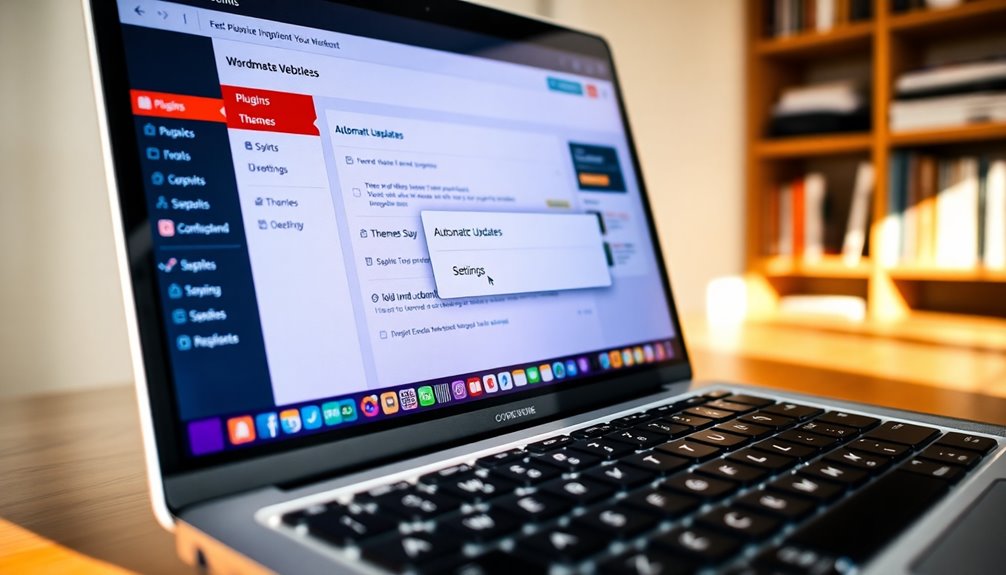
How can you easily access the settings for your WordPress plugins and themes? First, log in to your WordPress dashboard.
Once you’re in, look for the “Plugins” menu on the left side of your screen. Click on it to enter the plugin management area, where you’ll see all your installed plugins. Here, you can adjust settings for each plugin individually.
Look for the “Plugins” menu on the left to manage and adjust settings for your installed plugins easily.
For theme updates, navigate to the “Appearance” menu and select “Themes.” Click on the theme you’re using to access its settings.
This is where you can customize options and manage updates. By familiarizing yourself with these sections, you’ll streamline your workflow and guarantee your site stays up-to-date and secure. Implementing regular backup schedules will further protect your website from unforeseen disasters.
Enabling Automatic Updates for Plugins
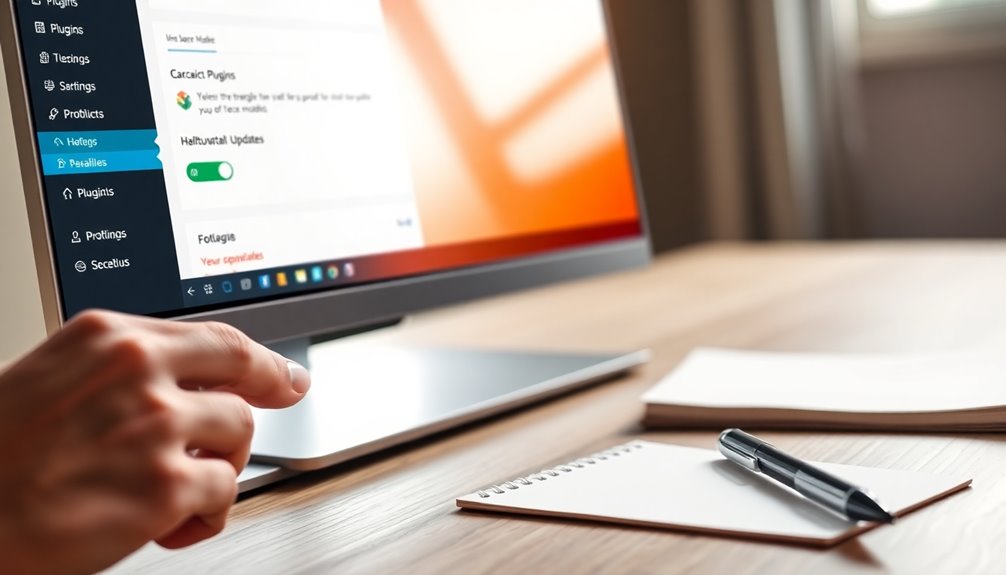
To keep your site secure and running smoothly, enabling automatic updates for plugins is essential. Start by finding your way to your WordPress dashboard, then go to the “Plugins” section.
You’ll see a list of installed plugins; click on each one to access its settings. Here, you can toggle the option for automatic updates. This guarantees that you’re always using the latest versions, which boosts security and fixes bugs. However, consider plugin compatibility, as updates might occasionally cause conflicts with other plugins or your theme. Regularly check the update frequency of your plugins to stay informed, making sure your site remains functional and secure without manual intervention. Embracing this feature saves you time and reduces the risk of vulnerabilities.
Additionally, keeping your plugins updated is crucial for protection against potential threats that can exploit outdated software.
Enabling Automatic Updates for Themes
After guaranteeing your plugins are set to update automatically, it’s time to turn your attention to themes. Automating theme updates is essential for maintaining performance and security. Here are some key considerations:
- Theme Selection: Choose themes from reputable sources to minimize risks.
- Update Frequency: Determine how often you want updates; regular checks can keep your site secure.
- Backup Importance: Always back up your site before updates to prevent data loss.
- Rollback Strategies: Have a plan in place to revert to a previous version if an update causes issues.
Additionally, regular backups are crucial to avoid potential updating failed errors that may arise during the update process.
Don’t forget about customization options and testing environments.
For multisite setups, guarantee consistent version control and user notifications to keep everything running smoothly.
Managing Automatic Updates Through the WordPress Dashboard
While managing automatic updates through the WordPress dashboard, you’ll find it straightforward to keep your site secure and up to date.
Start with dashboard navigation, where you can easily access the “Updates” section. Here, you’ll see available updates for your plugins and themes. You can enable or disable automatic updates for each item directly from this section, streamlining your update management process.
If you prefer, you can also set up notifications to stay informed about updates without manual checks. Regularly visiting this area guarantees you’re aware of any critical updates that might need your attention, as optimizing backup frequency ensures data safety and website integrity.
Using Code to Enable Automatic Updates
If you want to enable automatic updates through code, you can easily do this in your theme’s `functions.php` file or by adjusting your `wp-config.php` settings. These methods give you more control over how and when updates happen. Let’s explore how to implement these options effectively. Additionally, regular updates can significantly enhance your site’s overall website security, making it less vulnerable to potential threats.
Enabling Updates in Functions.php
To enable automatic updates for your plugins and themes, you can easily modify your theme’s `functions.php` file.
This method allows for straightforward functions.php customizations that enhance your site’s update frequency.
Here’s how to do it:
1. Open your theme’s `functions.php` file.
2. Add the following code snippet:
“`php
add_filter(‘auto_update_plugin’, ‘__return_true’);
add_filter(‘auto_update_theme’, ‘__return_true’);
“`
3. Save the changes.
4. Test your setup to guarantee updates are automatically applied.
Using Wp-Config.Php Settings
After enabling automatic updates through your theme’s `functions.php`, you can also manage updates directly in your `wp-config.php` file.
This file offers various configuration options that help you set update frequency and modify default values for plugins and themes. To guarantee security, check file permissions before making changes.
You can also enable update logs for better change management and to track updates effectively. Keep backup considerations in mind, as automatic updates may impact performance.
Should an update cause issues, having rollback procedures ready is essential. By configuring your `wp-config.php` settings, you gain tighter control over your site’s updates, guaranteeing a smoother experience while minimizing potential problems.
Understanding the Risks of Automatic Updates
When you enable automatic updates for plugins and themes, you might encounter compatibility issues that can disrupt your site’s functionality. Additionally, while updates often fix security vulnerabilities, they can also introduce new risks if not properly vetted. It’s crucial to weigh these potential pitfalls before turning on automatic updates. Regular backups of your site are essential to mitigate the impact of any unforeseen issues that arise during updates.
Potential Compatibility Issues
While automatic updates can streamline your site’s maintenance, they also carry the risk of compatibility issues. Here are some common concerns you should keep in mind:
- Plugin conflicts: Different plugins may not work well together after updates.
- Theme interactions: Updates can cause your theme to behave unexpectedly or break functionality.
- Version compatibility: Verify that your plugins and themes are compatible with the current version of WordPress.
- Testing environments: Always test updates in a staging site to catch issues early.
To mitigate risks, consider implementing error logging and have rollback procedures in place.
This way, you can easily revert updates if needed, minimizing manual intervention and promoting smoother dependency management.
Security Vulnerabilities Risks
Although automatic updates can enhance your site’s security, they also introduce potential risks associated with vulnerabilities. When plugins or themes update automatically, they may inadvertently introduce new bugs or conflicts. This can lead to security gaps that cybercriminals exploit.
To mitigate these risks, you should adhere to security best practices, such as regularly backing up your site and testing updates in a staging environment before applying them live. Additionally, update monitoring is essential; keep an eye on the changes made by automatic updates to verify they don’t negatively impact your site’s functionality.
How to Customize Update Notifications?
Customizing your notification settings can help you stay informed without being overwhelmed. Here are some key options you can adjust:
Customizing your notification settings keeps you informed while minimizing distractions and clutter.
- Update Frequency: Choose how often you want to receive update messages—daily, weekly, or monthly.
- Notification Methods: Decide between email alerts or in-dashboard notifications based on your user preferences.
- Display Options: Select how updates are shown on your dashboard, whether you want to see all updates or just critical ones.
- Customization Options: Fine-tune which plugins and themes send notifications to avoid unnecessary clutter.
Additionally, ensuring your site remains secure and up-to-date is crucial for enhancing online visibility, which is vital for attracting organic traffic.
Troubleshooting Common Issues With Automatic Updates
When you enable automatic updates for plugins and themes, you might run into some common issues.
Update conflicts and compatibility problems with your themes can disrupt your site’s functionality. To mitigate these risks, ensure you regularly check for plugin conflicts that may arise after updates.
Let’s explore how to troubleshoot these challenges effectively.
Update Conflicts and Errors
As you enable automatic updates for plugins and themes, you might encounter conflicts and errors that can disrupt your site’s functionality.
To tackle these issues, consider the following steps:
- Backup Strategies: Always back up your site before updates, allowing for an easy update rollback if needed.
- Check Plugin Compatibility: Verify all plugins are compatible with the latest versions to avoid version conflicts.
- Monitor Site Performance: After updates, assess your site’s performance for any slowdowns or issues.
- Utilize a Troubleshooting Guide: Refer to a reliable troubleshooting guide for error resolution, especially for common theme conflicts.
Compatibility Issues With Themes
Automatic updates can sometimes lead to compatibility issues with themes, which may affect your site’s appearance and functionality.
When themes and plugins don’t align, you might experience version mismatches or code conflicts. This can cause plugin conflicts that degrade your site’s performance and user experience.
To minimize these issues, always conduct update testing in a staging environment first. Check for theme dependencies that could impact your updates, and stay aware of how plugin updates might interact with your theme.
If you encounter problems, utilize roll back options to revert to previous versions until a solution is found.
Keeping a close eye on theme compatibility guarantees your site runs smoothly and maintains its intended look and feel.
Best Practices for Maintaining Site Security With Updates
Here are some best practices to maintain security:
- Set Update Frequency: Choose an appropriate schedule for automatic updates that aligns with your site’s needs.
- Implement a Backup Strategy: Always back up your site before updates to safeguard your data.
- Adjust User Permissions: Ascertain only trusted users have permission to make updates, reducing risk from unauthorized changes.
- Check Notification Settings: Enable notifications for updates, so you’re informed of any new releases or potential issues.
Additionally, regularly reviewing and updating security measures helps you stay ahead of potential threats.
What to Do After an Update: Testing and Verification
After implementing updates for your plugins and themes, it’s important to verify that everything is functioning smoothly.
Start by conducting performance checks to guarantee your site runs efficiently. Look for any plugin conflicts that may have arisen and address them promptly. If issues occur, don’t hesitate to use rollback procedures to revert to the previous version. Always have backup strategies in place to safeguard your data before making changes.
Next, perform thorough theme testing to confirm your site’s appearance and functionality remain intact.
Finally, gather user feedback to identify any overlooked issues. By following these steps, you’ll maintain a seamless experience for your visitors while guaranteeing your updates enhance your site’s performance.
Conclusion
To summarize, setting up automatic updates for your plugins and themes keeps your WordPress site secure, saves you time, and guarantees you’re using the latest features. By enabling these updates, managing notifications, and following best practices, you’re not just maintaining your site—you’re enhancing its performance, boosting its security, and simplifying your workload. So take these steps today, stay proactive, and enjoy the peace of mind that comes with a well-maintained website.