


Last updated: · By Ryan Walsh
A site maintenance routine is a recurring set of checks that keeps your WordPress site updated, backed up, fast and secure. For most beginners, 15 minutes a week is enough to cover the essentials once you automate the tasks that repeat. This guide explains what to include, what to automate, and what to check when something breaks.
Key Takeaways
- A weekly site maintenance routine covers five areas: updates, backups, plugin review, performance checks and security checks.
- The official WordPress developer security guide ranks keeping core, plugins and themes current as the most important security measure.
- NIST SP 800-40 Revision 4, published April 6, 2022, treats patching as preventive maintenance that should be planned in advance.
- Store at least one backup offsite, and test a restore before you need one.
- Delete plugins and themes you do not use, since each one is extra code that may need updates.
What Is a Site Maintenance Routine?
A site maintenance routine is a fixed schedule of tasks that keeps a website working properly over time. In WordPress, those tasks cover software updates, backups, speed, and security, which are the areas most likely to fail or be exploited when ignored. Automation handles the repetitive parts so you only need to review the results.
Maintenance matters because patching, which means installing a software update that fixes a known flaw, is ongoing work. In NIST’s announcement of its enterprise patch management guidance, the agency notes that SP 800-40 Revision 4 replaced the 2013 Revision 3 and frames patching as preventive maintenance. That guidance is written for large organizations, but the principle applies to a single WordPress site.
How Do You Build a 15-Minute Weekly Routine?
You build a weekly routine by splitting the work into five short blocks and letting scheduled tools do most of the heavy lifting. Your job each week is to review results, make decisions, and fix what the tools flag. The times below are planning estimates, not measured results.
| Weekly task | Time | What to automate |
|---|---|---|
| Check update status | 3 minutes | Automatic minor core updates and updates for plugins and themes you trust |
| Confirm the last backup succeeded | 2 minutes | Scheduled backups with failure alerts |
| Review plugins and themes | 4 minutes | Nothing; this step needs your judgment |
| Check speed and uptime | 3 minutes | Scheduled uptime monitoring and speed reports |
| Review security scan and login alerts | 3 minutes | Scheduled malware scans and login notifications |
| Total | 15 minutes |
Work through the routine in this order each week:
- Check the dashboard for pending updates and install any that are marked safe.
- Confirm that the most recent backup completed and that its size looks reasonable.
- Review your plugin list and remove anything you no longer use.
- Check your speed and uptime reports for slow pages or downtime.
- Review the security scan results and any failed login alerts.
How Do You Automate Backups Safely?
You automate backups by choosing a plugin or host feature that runs on a schedule, stores copies offsite, and alerts you when a run fails. Backup frequency should match how often your content changes. A site that publishes daily needs more frequent backups than a brochure site that rarely changes.

How Often Should Backups Run?
Set daily backups for sites that publish or sell often, and weekly backups for sites that change slowly. Keep several older copies so you can roll back to a version from before a problem started. Your backup plugin should let you set both the schedule and the number of copies to retain.
Where Should You Store Backups?
Store backups somewhere other than the server that runs your site, such as a cloud storage account. If your host fails or your account is compromised, a copy on the same server may be lost with the site. Read our guide to WordPress backup plugins to compare options that support offsite storage.
Why Should You Test a Restore?
A backup you have never restored is only a guess that it works. Once a quarter, restore a copy to a staging site or local install and confirm that pages, media and settings come back. Write down the steps so you can repeat them under pressure.
How Do You Keep Plugins, Themes, and WordPress Updated?
You keep your site current by installing updates regularly, removing unused extensions, and choosing plugins and themes that still receive updates. The official WordPress developer guide ranks keeping core, plugins and themes current as the most important security measure. It also recommends selecting extensions that the developer still maintains.
Read the WordPress developer security guide for the official recommendations on keeping core, plugins and themes current. Its advice is the baseline for everything else in this routine.
Should You Turn On Automatic Updates?
Yes for most small sites, but limit automatic updates to minor releases and to extensions you trust. Test major updates on a staging copy first, because they are more likely to change how a theme or plugin behaves. Check the changelog before you update anything that handles checkout, forms or membership.
How Does Automated Patching Work?
Automated patching uses tools to find available updates, apply them on a schedule, and report what changed. NIST’s practice guide SP 1800-31, Improving Enterprise Patching for General IT Systems, walks through an example setup that shows how existing tools can carry out those steps. Its enterprise scale is larger than a personal blog, but the workflow of schedule, apply, and report carries over.
NIST’s older guide, Creating a Patch and Vulnerability Management Program, was written for manual patching. It is superseded, so use it only for historical context.
How Do You Monitor Performance and Security Each Week?
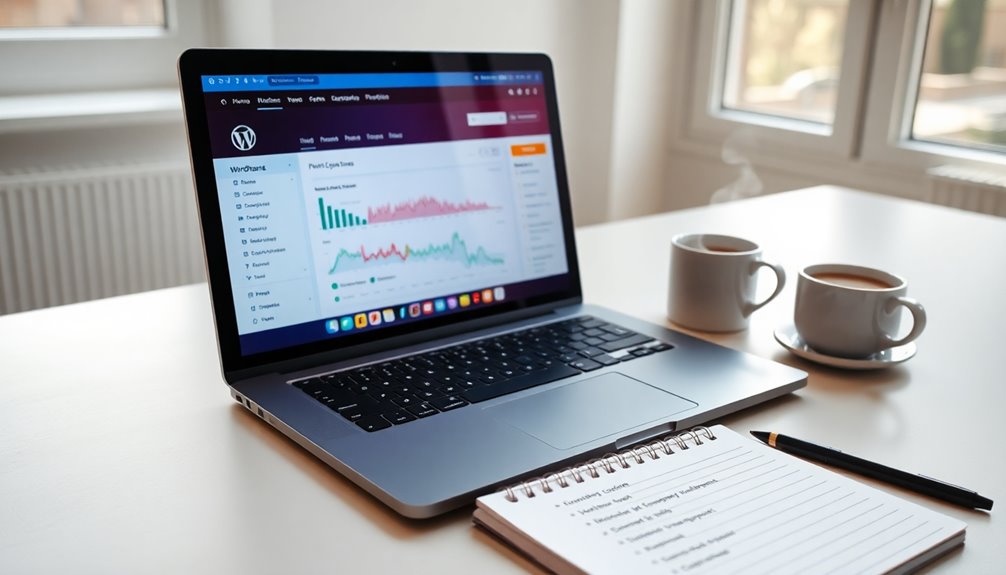
You monitor performance and security by checking a few trusted reports each week and watching for changes rather than single results. Speed tools show how your pages load, while security scans and login logs show whether someone is trying to get in. Consistent weekly checks are more useful than occasional deep dives.
Which Tools Measure Site Speed?
Google PageSpeed Insights and GTmetrix both report how quickly your pages load and list specific fixes. Test your most important pages, such as the homepage and a top article, and compare results week to week. For a fuller plan, see our guide on speeding up WordPress in under 10 minutes.
How Do You Secure Logins and User Access?
Require strong, unique passwords and remove accounts that no longer need access. Give each user the lowest role that lets them do their job, because editors do not need administrator rights. Our guide on managing WordPress user roles and permissions explains how to set this up.
Which Security Checks Can You Automate?
Schedule malware scans, login alerts and file-change notifications where your security plugin or host offers them. Automation reduces the chance that you miss a warning, but it does not guarantee protection. Review the alerts yourself each week, and follow the broader steps in our WordPress security practices for 2026 article.
What Should You Check When Something Breaks?
When your site breaks after maintenance, start with error messages, then isolate the cause by testing plugins one at a time. Most problems after an update come from a plugin or theme conflict, a stale cache, or a database setting. Work through the checks below in order, and make one change at a time.
- Read the exact error message, which often names the file or plugin responsible.
- Deactivate all plugins, then reactivate them one by one, checking the site after each.
- Clear your page cache and browser cache, since old cached files can hide a fix.
- Confirm the database name, username and password in your wp-config.php file are correct.
- Contact your hosting provider if the problem involves the server rather than WordPress.
If you see signs of a hack, such as unknown admin accounts or pages you did not create, follow the steps in what to do if your WordPress site gets hacked before you try other fixes.
Frequently Asked Questions
How long should a weekly WordPress maintenance routine take?
A basic routine can take about 15 minutes a week if your backups, updates and scans are already scheduled. Your first few weeks will take longer while you set up alerts and learn where the reports are. After that, the time goes mostly to reviewing results and handling the occasional problem.
Is it safe to turn on automatic plugin updates?
It is safer for plugins you trust and that are actively maintained, and riskier for plugins with a history of breaking changes. Enable automatic updates for a short list of reliable plugins, and test larger updates on a staging copy first. Always keep a recent backup before any update.
How often should I back up my WordPress site?
Back up daily if you publish or sell something most days, and weekly if your content changes slowly. Keep several older copies so you can roll back past a problem that you did not notice right away. Make sure at least one copy is stored offsite.
Do I still need maintenance if my host handles backups?
Yes, because a host backup does not check your plugins, speed, or security settings. Confirm what your host backs up, how long copies are kept, and how to restore them. Then keep your own weekly review of updates and alerts.
What should I do if an update breaks my site?
Restore the most recent backup taken before the update, or deactivate the plugin or theme that changed. Check the error message and the plugin’s changelog or support forum for known issues. Once the site is stable, test the update on a staging copy before trying it again.
Conclusion
A site maintenance routine does not need hours each week. Automate backups, updates and scans, then spend about 15 minutes reviewing the results and acting on alerts. Automation lowers the risk of forgotten tasks, but your weekly review is what catches the problems the tools cannot judge for you.
More on Site maintenance routine
Related guides: The Ultimate Guide to WordPress Backup Plugins" · Must-Know WordPress Security Practices for 2026 · How to Speed Up WordPress in Under 10 Minutes
Free tools: How Much Does a WordPress Site Cost? Free Calculator